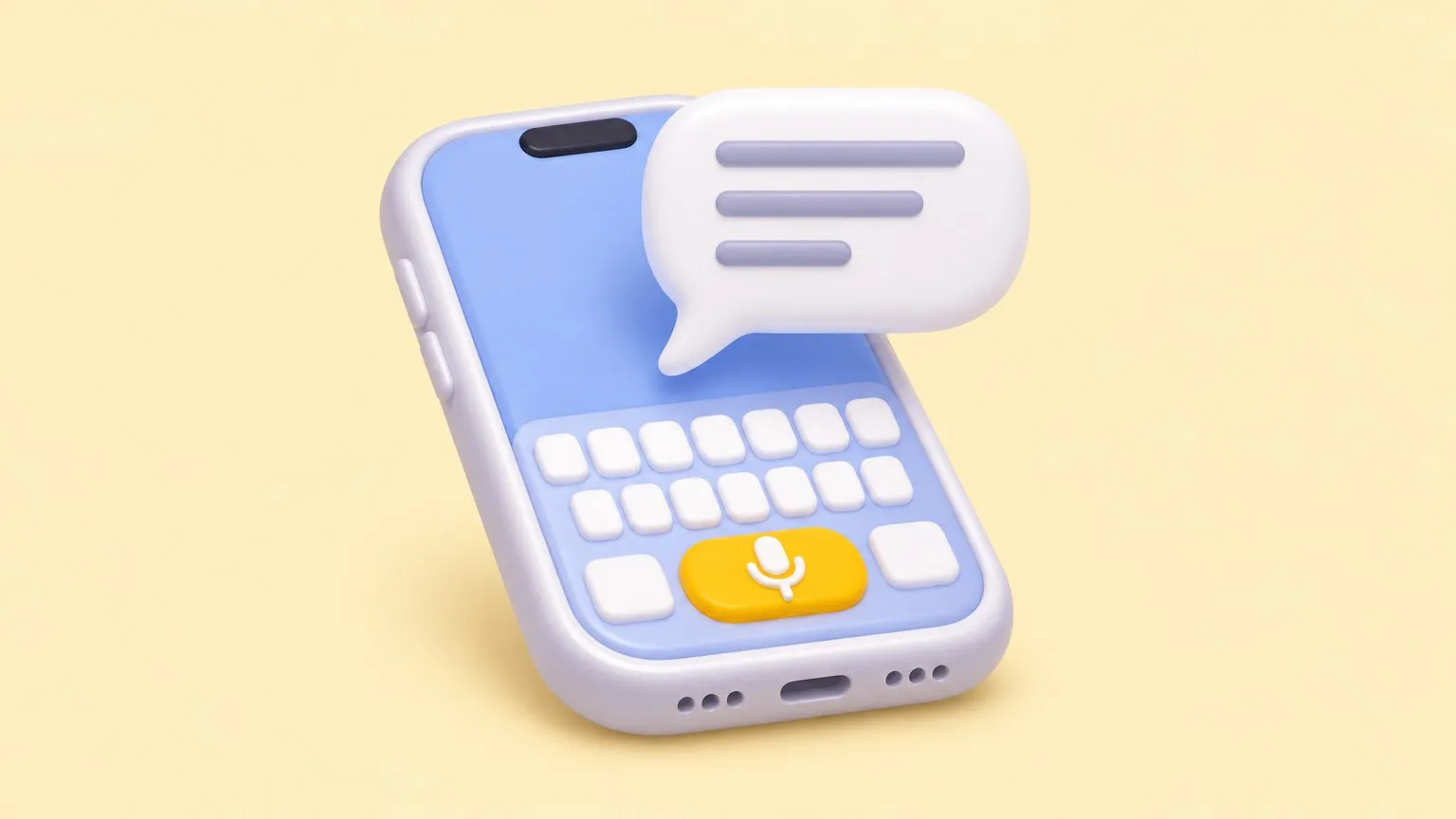
To use voice to text on iPhone, turn on Settings › General › Keyboard › Enable Dictation, then tap the microphone key on the keyboard and speak. That’s ideal for messages and short notes. For anything longer, like a meeting, a lecture or ten minutes of thinking out loud, record it and let a transcription app such as Mangonote turn the whole recording into text, then summarize it.
Here’s how both work, and how to pick.
How to turn on voice to text on iPhone
- Open Settings › General › Keyboard.
- Turn on Enable Dictation.
- In any app with a text field, tap the microphone key on the keyboard and talk.
- Tap the microphone again, or just stop talking, to finish.
Apple’s Dictate text on iPhone guide covers the details. A few things it explains:
- Punctuation: say “comma”, “period” or “question mark”. In supported languages, dictation also adds punctuation automatically, and you can switch that off with Auto-Punctuation in the same Keyboard settings.
- Formatting: say “new line” or “new paragraph”.
- Offline: on supported models, dictation works without an internet connection.
What keyboard dictation is good at, and where it struggles
Good at: texts, emails, search queries, a quick note, filling in a form when your hands are busy.
Struggles with:
- Long thinking. Pause to think and dictation may stop listening. You end up tapping the mic again and again.
- Other people. It’s built for one person talking to the phone, not a conversation across a table.
- Going back. There’s no recording to replay, so if a word is wrong you can’t check what you actually said.
- Structure. You get one long block of text, not notes with headings and action items.
When to use a transcription app instead
Record first, transcribe after. That’s the better fit for:
- Meetings and interviews with several people (meeting guide)
- Lectures that run for an hour (lecture guide)
- Long notes and drafts you think through out loud (dictation guide)
- Files you already have, like voice memos and videos
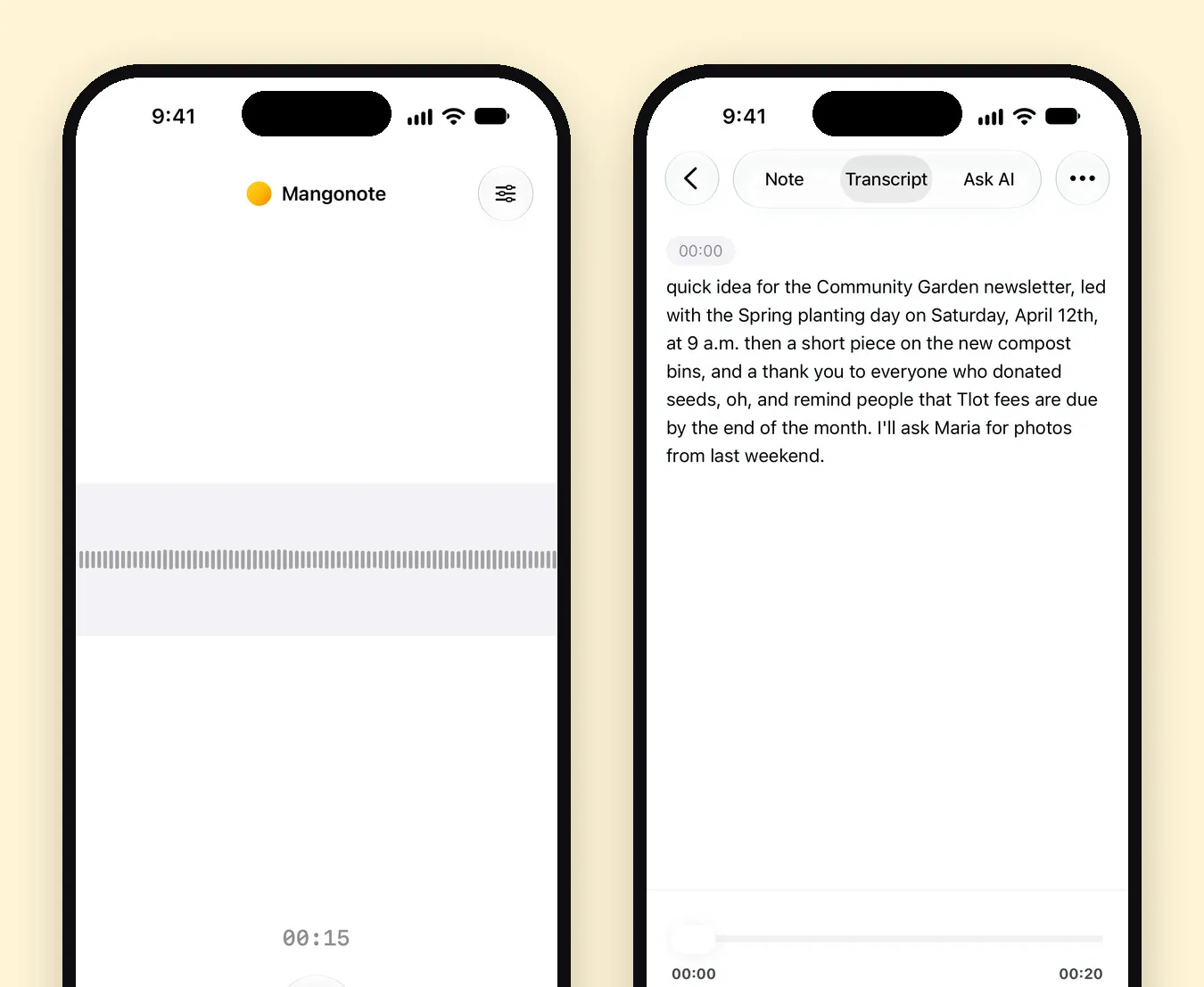
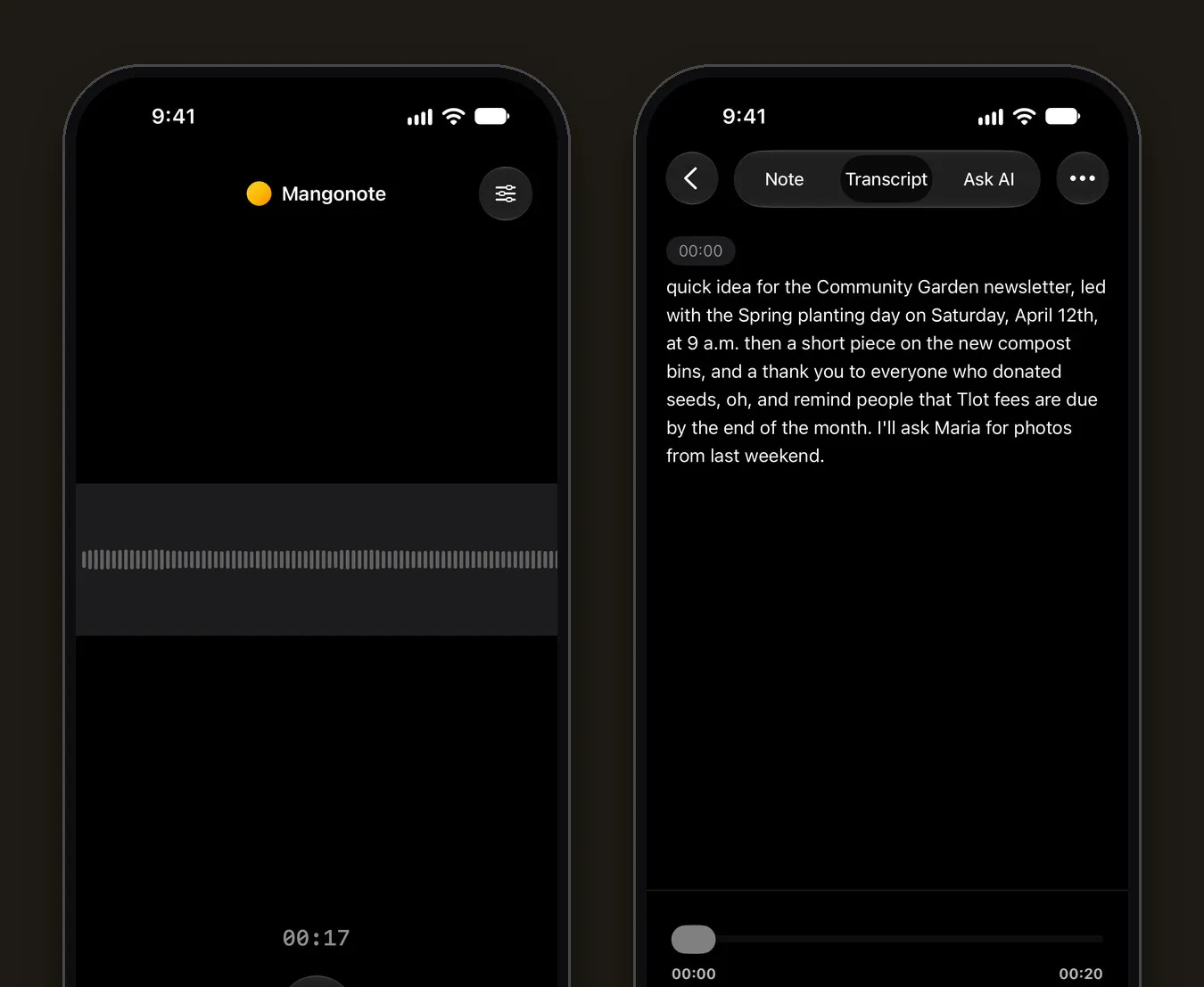
In Mangonote you tap Start Recording, talk as long as you need (pause whenever you like), and tap the checkmark. The recording is transcribed on the iPhone, offline, with timestamps. AI can then write a title, a summary and action items, if you want it to.
Dictation vs. Voice Memos vs. a transcription app
| Keyboard dictation | Voice Memos transcript | Mangonote | |
|---|---|---|---|
| Built in | Yes | Yes (iPhone 12 or later) | App, free to start |
| Best for | Short text into any app | Reading back a recording | Long recordings, notes and summaries |
| Keeps the audio | No | Yes | Yes |
| Edit the transcript | It’s normal text | View, copy, search | Edit line by line |
| Summaries | No | With Apple Intelligence (iPhone 15 Pro and later) | Styles, sizes and your own prompts, with the AI model you pick |
| Languages | Apple’s dictation languages | 10 | About 100 with Whisper, up to 1,600 with Omnilingual |
Sources for the Apple columns: Apple’s guides to dictation and Voice Memos transcription, as of November 2026.
Tips for accurate voice to text
- Speak at a normal pace, not slower. Models are trained on natural speech.
- Keep the phone close, about a hand’s width to an arm’s length, and away from fans and traffic.
- Fix a misheard name once, then use search to find other places it appears.
- Pick the language instead of auto-detect when you know it.
- For long recordings, choose the right model. Mangonote has several on-device models; our Whisper guide explains which suits which language.
Related guides
- How to dictate notes on iPhone and turn them into drafts
- How to transcribe voice memos on iPhone
- Offline voice transcription on iPhone
Frequently asked questions
How do I turn on voice to text on iPhone?
Go to Settings › General › Keyboard and turn on Enable Dictation. Then tap the microphone key on the keyboard in any app and start talking.
Why is there no microphone on my iPhone keyboard?
Dictation is probably turned off. Turn on Enable Dictation in Settings › General › Keyboard, and check that the keyboard you're using supports it.
Does iPhone dictation work offline?
Apple's guide says that on supported models you can use dictation without an internet connection. For long recordings, an on-device transcription app like Mangonote also works offline.
What's the best voice to text app for long recordings?
For meetings, lectures and long notes, use an app that records first and transcribes the whole recording, so it doesn't stop when you pause. Mangonote does this on the iPhone, in about 100 languages with Whisper, and can summarize the result.
Can voice to text handle several people talking?
Keyboard dictation is built for one person speaking to the phone. To capture a conversation, record it and transcribe the recording instead.
Start capturing the thoughts you keep losing
Download Mangonote, record your first note, and watch it become searchable text in seconds, right on your iPhone.