
To transcribe a voice memo on iPhone, open it in the Voice Memos app and choose View Transcript: on iPhone 12 and later, in supported languages and regions, Apple shows the text for free. If you want a transcript you can edit, search, summarize and export, save the memo to Files and import it into a transcription app such as Mangonote, which turns it into text on the iPhone itself, even offline.
Below are both methods step by step, plus the Notes app trick, so you can pick the one that fits.
Can iPhone transcribe voice memos by itself?
Yes, with some conditions. According to Apple’s iPhone User Guide, Voice Memos can show a transcription of a recording while you record or afterwards, and its search also looks through transcripts. The feature needs an iPhone 12 or later, works in 10 languages (English, Spanish, Portuguese, Italian, French, German, Japanese, Korean and Simplified and Traditional Chinese), and isn’t offered in every country or region. On iPhones with Apple Intelligence (iPhone 15 Pro and later), Writing Tools can also summarize a transcript.
That’s enough for reading a memo back. It’s less helpful when your language isn’t on the list, when you want to edit the text line by line or choose how it’s summarized, or when you want to export a whole library. That’s where a transcription app comes in.
Method 1: View the transcript in Voice Memos
- Open Voice Memos and tap the recording.
- Tap the More button (•••) and choose View Transcript.
- To copy everything, choose Copy Transcript from the same menu, then paste it into Notes, Mail or a document.
While you’re recording, you can also swipe up on the waveform and tap the transcription button to watch the text appear.
Good for: reading a short memo, copying a quote. Not built for: editing the transcript, summaries, or exporting a whole library.
Method 2: Transcribe a voice memo with Mangonote
Mangonote is an AI note taker for iPhone. You can record in it directly, or bring in memos you already have. Voice Memos doesn’t hand recordings straight to other apps, so the first step is saving the memo to Files.
Step 1: Save the voice memo to Files
In Voice Memos, tap the recording, tap More (•••), then Share › Save to Files. Pick a folder, for example On My iPhone, and tap Save.
Step 2: Import it into Mangonote
- Open Mangonote and tap the + button at the bottom right of Home.
- In Import Options, tap Audio.
- Browse to the folder from Step 1 and tap your memo.
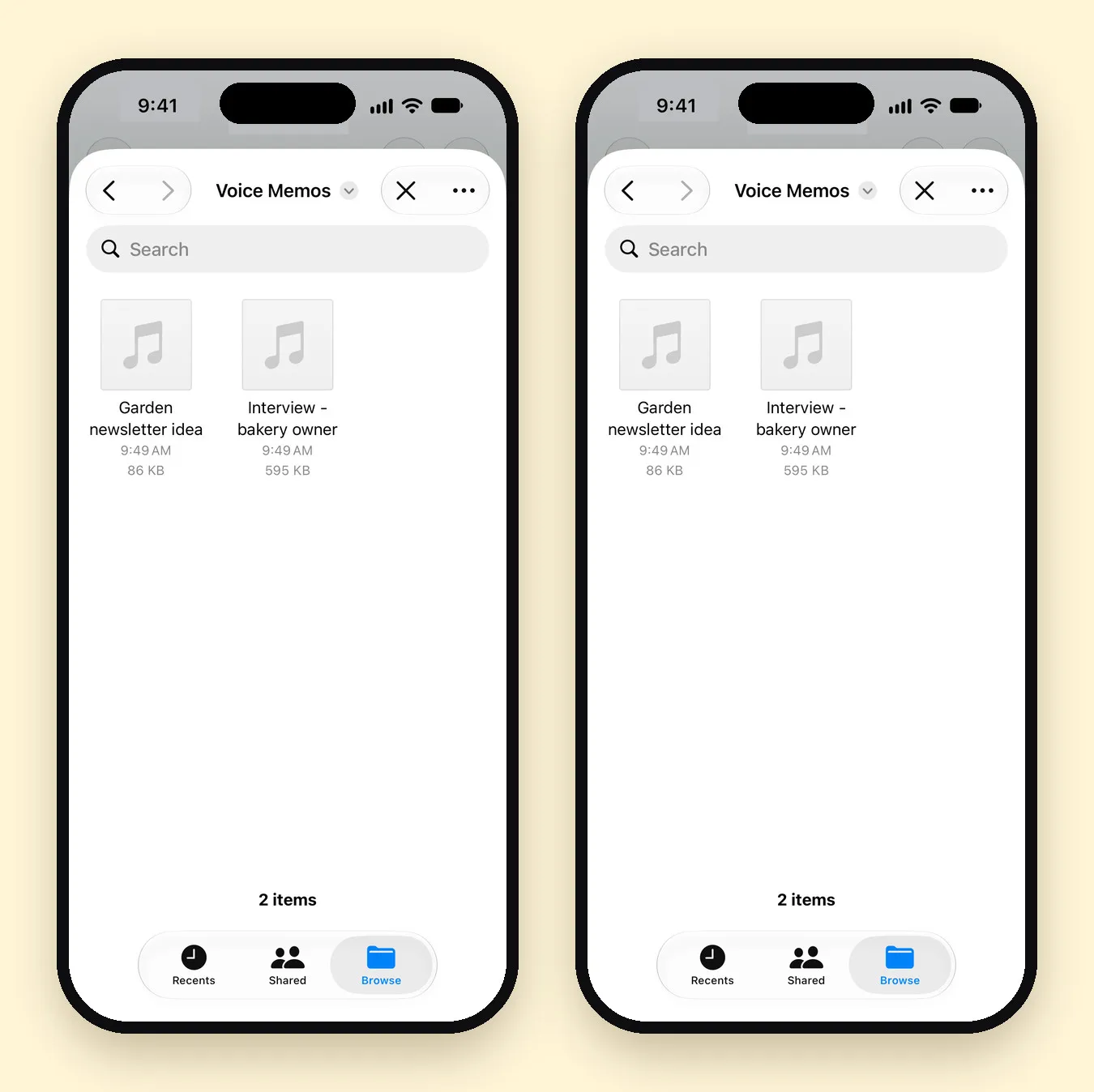
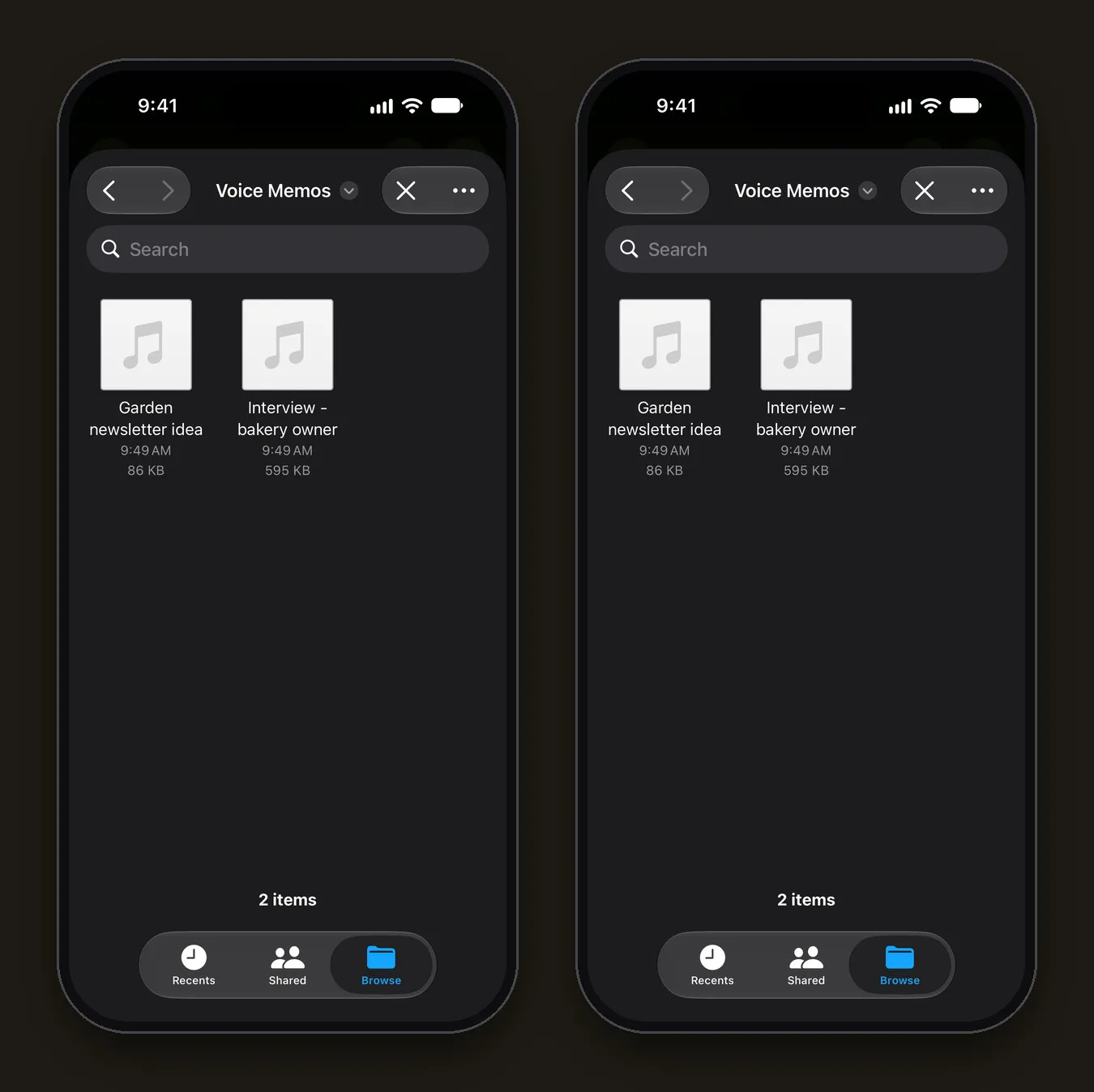
Mangonote shows Processing audio… Transcribing audio with a progress bar. The longer the memo, the longer this takes, and the app asks you to keep it open while it works. Nothing is uploaded at this step: the speech model runs on your iPhone.
Step 3: Read and fix the transcript
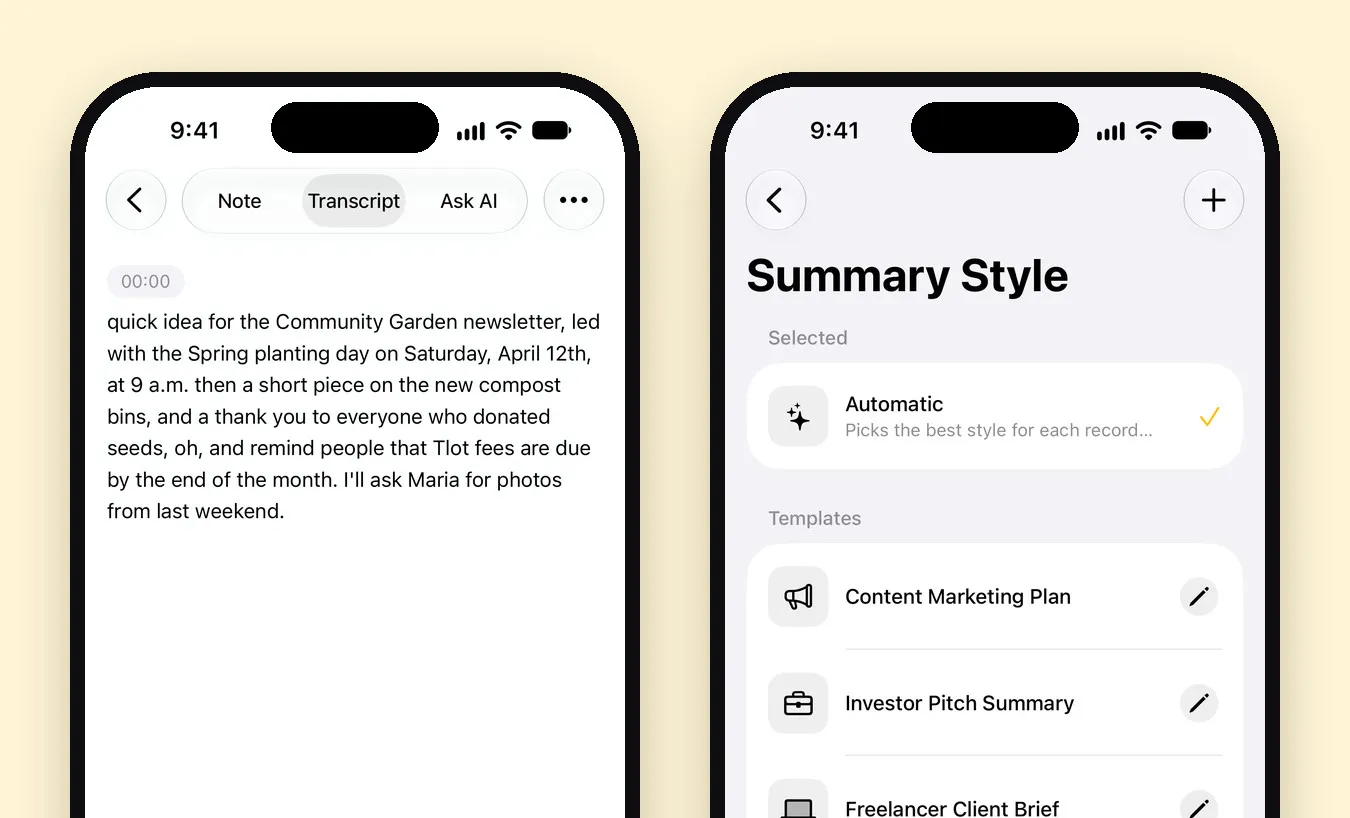
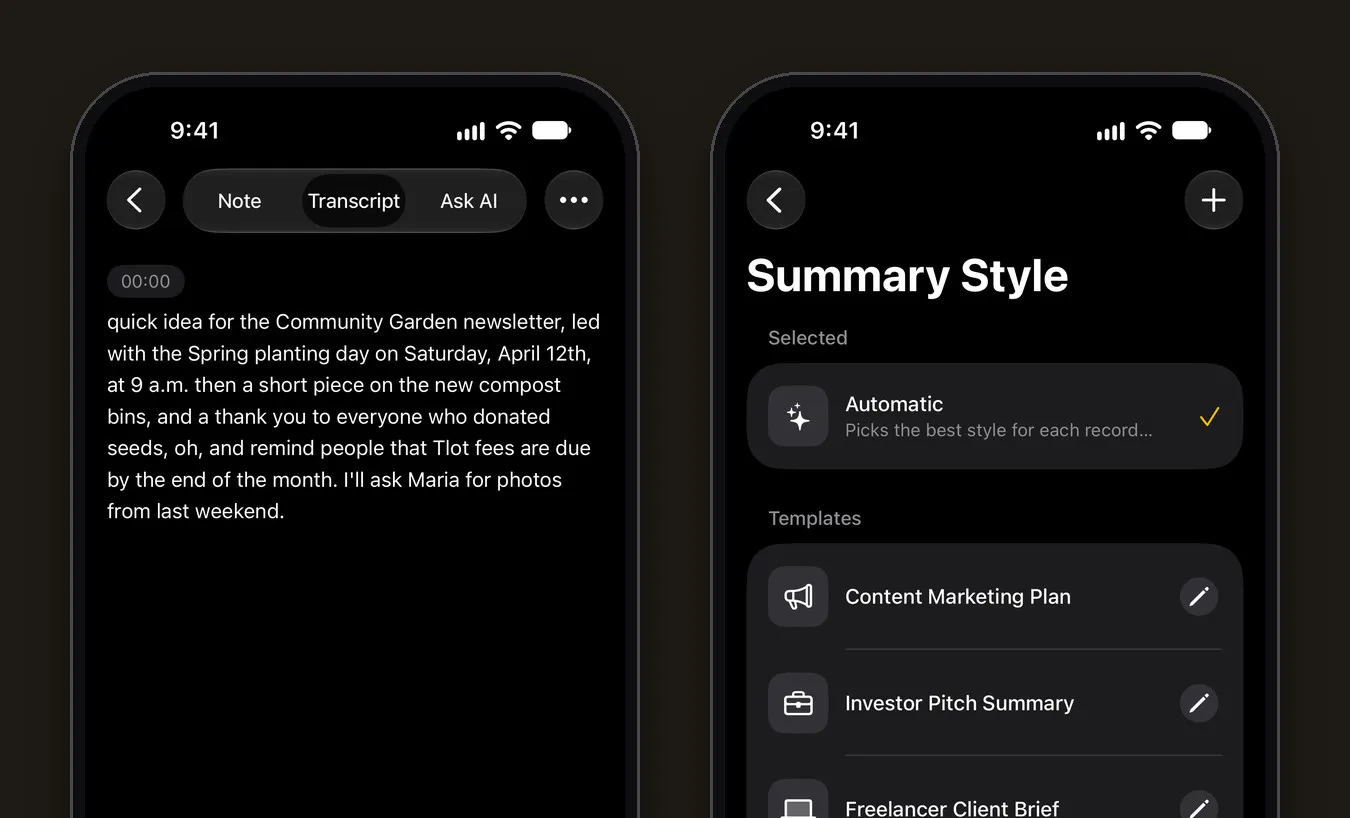
Tap View Note, then the Transcript tab. The text comes with timestamps and a player, so you can listen to any part again. Tap a line to correct it.
Here’s an honest example. We imported a 20-second memo about a community garden newsletter. The transcript was right apart from two words: “lead with” came out as “led with”, and “plot fees” as “Tlot fees”. Names, numbers and unusual words are where speech recognition slips, so check those first.
Step 4: Turn the memo into a summary (optional)
On the Note tab, tap Generate summary. AI reads the transcript and writes a title, a short summary and, when there are any, key points and action items. The Automatic style picks a format that suits the recording, and the Voice Memo Notes template is made for exactly this kind of quick, spoken thought. You can also write your own prompt in Settings › Transcription & AI › Prompt.
Summaries are the one step that uses the internet: only the transcript text goes through Mangonote’s server to the AI model you pick, never the audio, and Mangonote asks before anything is sent. You can turn AI off and keep plain transcripts.
Method 3: Record in Notes instead
If you haven’t recorded yet, the Notes app can record audio and transcribe it as you go. In a note, tap the attachment button (the paperclip), then Record Audio. Apple covers the details in Record and transcribe audio in Notes. It’s handy for a quick recording inside an existing note, though it doesn’t help with memos you’ve already made in Voice Memos.
Which method should you use?
| Voice Memos transcript | Mangonote | |
|---|---|---|
| Cost | Free, built in | Free to start; Mangonote Plus removes the limits |
| Requirements | iPhone 12 or later, supported language and region | iOS 18 or later |
| What you can do with the text | View, copy and search it; summarize it with Apple Intelligence (iPhone 15 Pro and later) | Edit it line by line, search it, summarize it in a style you pick, ask questions about it |
| Where it’s transcribed | (Apple’s guide doesn’t say) | On the iPhone, also offline |
| Languages | 10 | About 100 with Whisper, up to 1,600 with Omnilingual |
| Export | Copy the text | Text, PDF, the audio file, or every note as Markdown |
If you only need to read a memo once, Voice Memos is enough. If you record a lot, or the memo is the start of real work (an email, a plan, meeting notes), a transcription app saves the copy-paste.
Tips for a more accurate transcript
- Pick the language in Mangonote (Settings › Transcription & AI › Language) when you know it, instead of Auto detect.
- Try another model for your language. Mangonote has several on-device models, and the language list shows how well each one handles yours. More on that in our guide to Whisper transcription on iPhone.
- Record close to the speaker, away from fans, traffic and music.
- Check names and numbers against the audio before you share the text.
Related guides
- Offline voice transcription on iPhone: how Mangonote works
- How to transcribe a video on iPhone
- 6 ways to get more out of your voice notes
- Apple Voice Memos vs. Mangonote: Which Should You Use?
- How to Record a Phone Call on iPhone and Get a Transcript
Questions about the free plan or a subscription? See Support.
Frequently asked questions
Can iPhone transcribe voice memos for free?
Yes. On iPhone 12 and later, in 10 languages and in supported regions, the Voice Memos app can show a transcript of a recording. Mangonote is also free to start and transcribes voice memos you import on the iPhone itself.
Why don't I see View Transcript in Voice Memos?
Apple's transcripts need an iPhone 12 or later, a supported language and a country or region where the feature is offered. If any of those is missing, the option doesn't appear. A transcription app like Mangonote works with any voice memo you save to Files.
Can I transcribe a voice memo without internet?
Yes, in Mangonote. It transcribes on the iPhone with a speech model that ships inside the app, so importing and transcribing a memo works in airplane mode. AI summaries need a connection.
Does Mangonote upload my voice memo?
No. The audio is transcribed on your iPhone and is never sent to Mangonote or to any AI service. If you ask for a summary, only the transcript text goes to the AI model you pick, and only after you agree.
What audio formats can I import?
Voice memos (M4A) import as they are. MP3, WAV and other common audio formats work too, and you can import videos from Photos.
Start capturing the thoughts you keep losing
Download Mangonote, record your first note, and watch it become searchable text in seconds, right on your iPhone.