
To transcribe a video on iPhone, save it to the Photos app, then import it into a transcription app such as Mangonote: tap +, choose Video, and pick it. Mangonote takes the video’s audio track and turns it into a timestamped transcript on the iPhone itself, without uploading anything. From there you can fix the text, get an AI summary, or export it.
Here’s each step, plus what to do with videos that aren’t in Photos yet, like a Zoom recording.
What kind of video can you transcribe?
Any video on your iPhone with speech in it:
- Videos you recorded: a talk, a class, a site visit, a family story
- Screen recordings: a demo, a tutorial, a call you were allowed to record
- Downloaded recordings: a Zoom, Teams or Google Meet recording, a lecture video from your course site
- Videos sent to you: from Messages, AirDrop or email
The video has to have an audio track with speech. A silent clip, or one with only music, gives you nothing to transcribe.
How to transcribe a video on iPhone with Mangonote
Step 1: Get the video into Photos
Videos you recorded are already in Photos. For a file you downloaded, open it in the Files app, tap Share, and choose Save Video. For a video in Messages or Mail, touch and hold it and save it.
Step 2: Import it
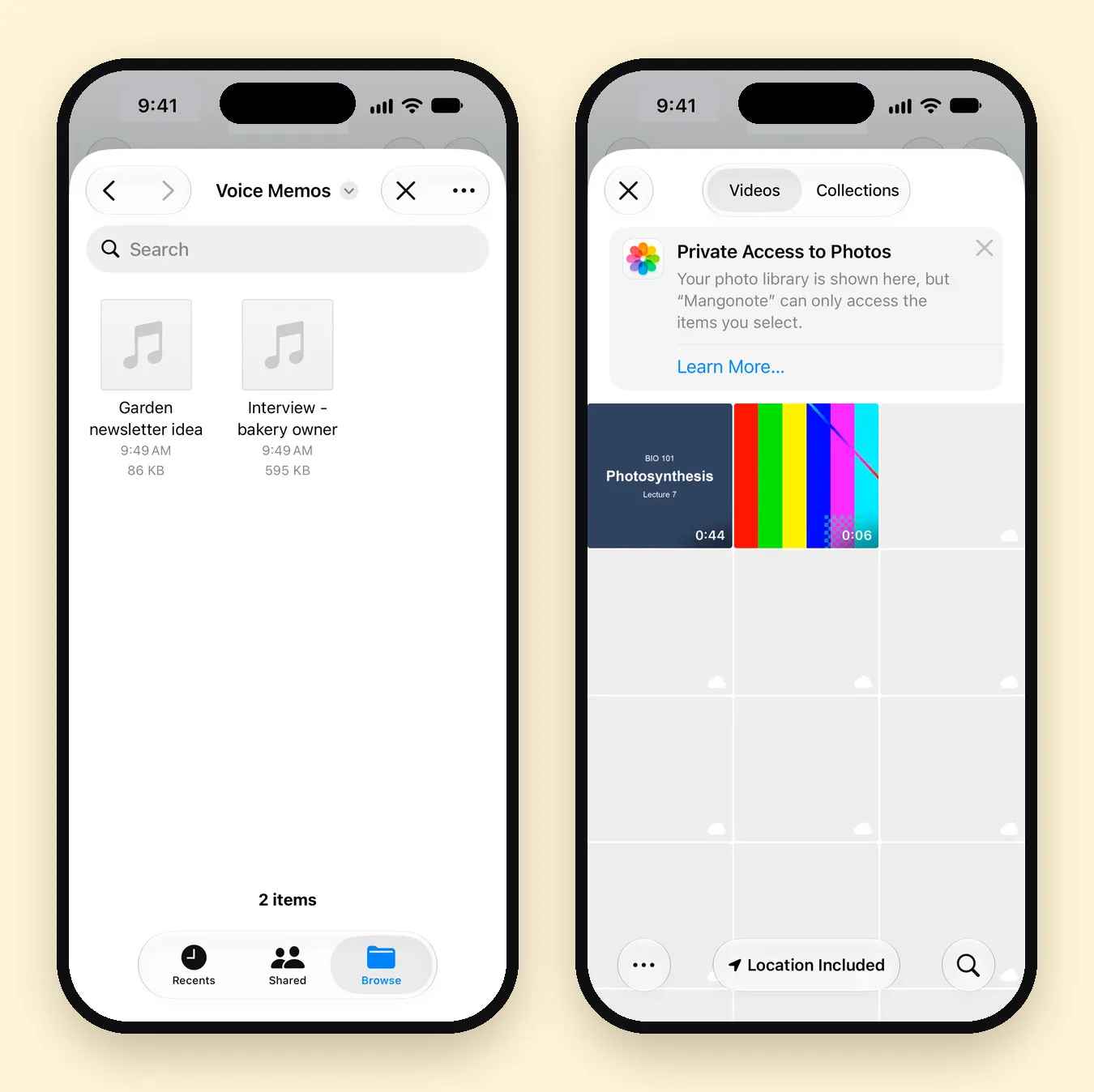
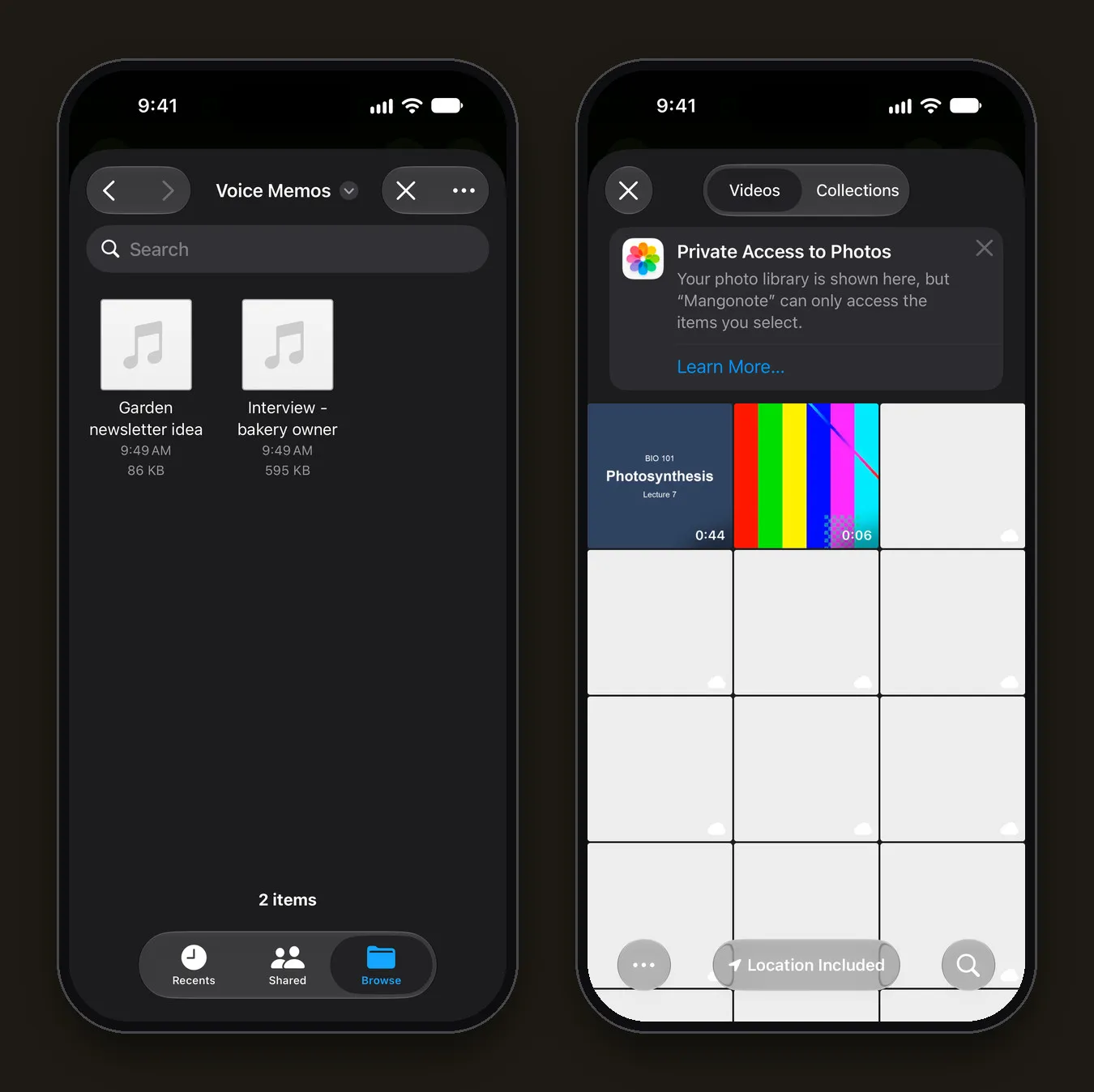
- Open Mangonote and tap the + button at the bottom right of Home.
- In Import Options, tap Video.
- Pick the video in the Photos picker.
The picker uses Apple’s private access: as the screen says, your library is shown, but Mangonote can only access the items you select.
Step 3: Wait for the transcript
Mangonote shows Processing audio while it pulls out the audio track and transcribes it. Keep the app open until you see Processing complete!, then tap View Note. This step runs on the iPhone, so it works offline.
Step 4: Read and fix the text
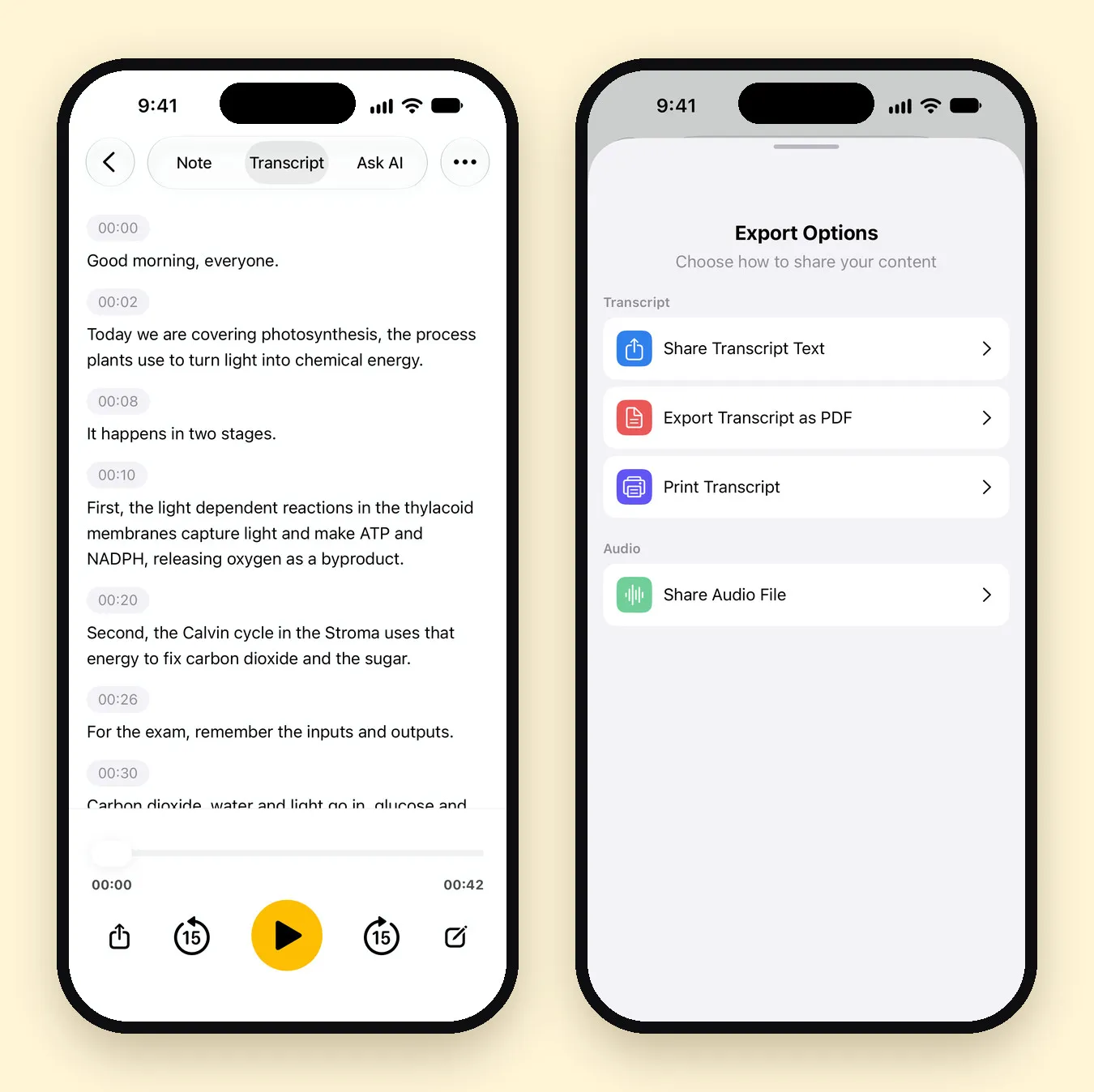
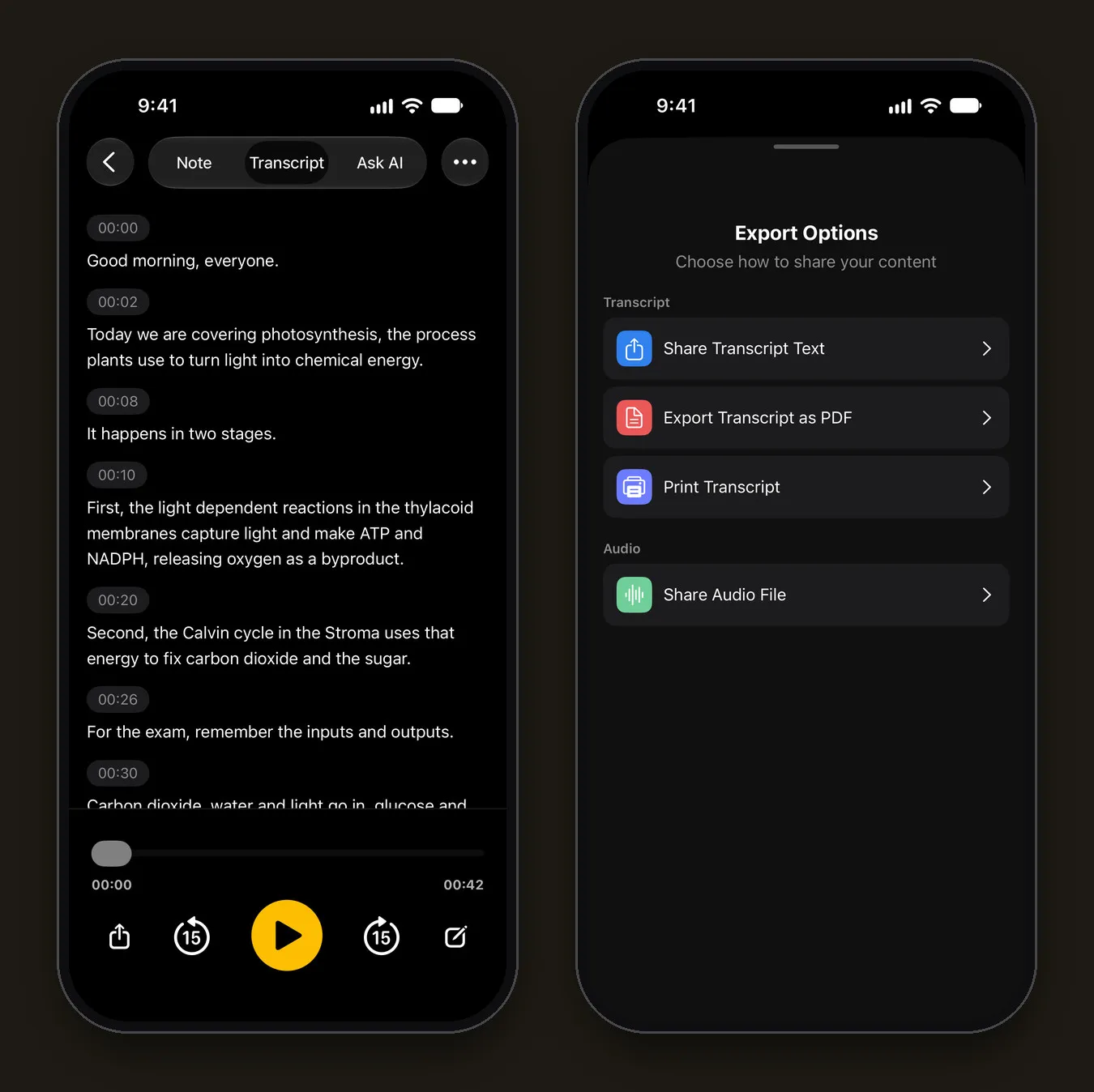
Open the Transcript tab. Each line has a timestamp, and the player lets you replay any part. Tap a line to correct it.
For this guide we imported a 44-second clip of a biology lecture on photosynthesis. The transcript came back with every sentence in place and two words to fix: “thylakoid” was spelled “thylacoid”, and “fix carbon dioxide into sugar” became “fix carbon dioxide and the sugar”. Specialist terms and short words are what to check.
Step 5: Summarize or export it
- Summary: on the Note tab, tap Generate summary. AI writes a title, a summary and, where there are any, decisions and action items. This step needs an internet connection and sends only the transcript text to the AI model you pick.
- Questions: on the Ask AI tab, ask things like “What are the three main points?” or “What did she say about pricing?”
- Export: open the note’s menu (•••), tap Share, then Share Transcript Text or Export Transcript as PDF.
Videos that aren’t in Photos
| Where the video is | What to do |
|---|---|
| Files app (MP4, MOV) | Open it, tap Share › Save Video, then import with + › Video |
| Zoom, Teams or Meet cloud recording | Download the recording on your iPhone, save it to Photos, then import. Some platforms also offer an audio-only file you can save to Files and import with + › Audio |
| On your Mac | AirDrop it to your iPhone; it lands in Photos |
| A website or YouTube | Only if you have the right to download it, such as your own uploads. Mangonote doesn’t import from links |
Ask before recording any call, and follow your company’s rules for meeting recordings.
Why transcribe on the iPhone instead of a website?
Most “video to text” websites upload your video to their servers. That’s fine for a public video, and not so fine for a team meeting, a client call or a family recording.
- Private by default. Mangonote transcribes on the iPhone, and the video’s audio isn’t sent to Mangonote or to any AI service.
- Works offline. No upload means no waiting on a slow connection, and it works on a plane.
- Keeps the audio with the text. You can always play back a line to check it.
The trade-off: a phone is slower than a server farm on very long files, and the free plan limits how long each import can be.
Limits to know
- Length: the app recommends audio under 2 hours for the most reliable results. The free plan has a shorter limit per file; Mangonote Plus removes it.
- No subtitle files: you get a timestamped transcript, not an SRT or VTT file.
- No speaker labels: the transcript doesn’t say who’s speaking.
- Errors: “The video couldn’t be loaded” means Mangonote couldn’t read the file. If the video is stored in iCloud Photos, open it in Photos first so it downloads, then try again, or pick another video. “No audio track found in video” means there’s no sound to transcribe.
Related guides
- How to transcribe voice memos on iPhone
- How to record lectures and turn them into study notes
- How to record a meeting and get AI meeting notes
- Offline voice transcription on iPhone
- How to Transcribe a Podcast and Write Show Notes on iPhone
Frequently asked questions
Can I transcribe a video on iPhone for free?
Yes. Mangonote is free to start and transcribes videos you import on the iPhone itself. The free plan has limits on the number and length of recordings and imports; Mangonote Plus removes them.
Does the video get uploaded?
No. Mangonote takes the audio from the video and transcribes it on your iPhone. Nothing is uploaded to be transcribed. Only if you ask for an AI summary does the transcript text go to the AI model you pick, after you agree.
Can I transcribe a Zoom or Teams recording?
Yes, if you have the recording file. Download it, save it to Photos (or save its audio to Files), and import it into Mangonote. Mangonote doesn't join calls itself.
Can I transcribe a YouTube video?
Only a video you have the right to download and save to your iPhone, such as your own uploads. Mangonote doesn't import from links.
Can I get subtitles (SRT) from a video?
Not as a subtitle file. Mangonote gives you a timestamped transcript you can share as text or a PDF.
How long can the video be?
The app recommends audio under 2 hours for the most reliable results. The free plan has a shorter limit per file, shown when you import; Mangonote Plus removes it.
Start capturing the thoughts you keep losing
Download Mangonote, record your first note, and watch it become searchable text in seconds, right on your iPhone.