To get AI meeting notes on iPhone, put your phone in the middle of the table, tap Start Recording in an AI note taker such as Mangonote, and stop when the meeting ends. The recording is transcribed on the iPhone, then AI turns the transcript into notes: a short summary, key decisions and action items with owners. You read, check and share them in a couple of minutes instead of writing minutes from memory.
This guide covers in-person meetings, how to set up the recording, how to shape the notes, and what to do about online calls.
What should good meeting notes include?
Most useful meeting notes answer five questions:
- What was decided? Decisions, written as plain statements.
- Who does what, by when? Action items with an owner and a deadline.
- What’s still open? Questions nobody could answer yet.
- What’s next? The next meeting, or the next check-in.
- Why? One or two lines of context for anyone who missed the meeting.
A full transcript has all of this, buried in an hour of talk. AI meeting notes pull it out. You still need the transcript to check the details.
How do you record a meeting on iPhone?
Before you start
- Ask everyone. Recording people without telling them is rude at best and illegal in some places (see below).
- Turn on Do Not Disturb or Airplane Mode. A phone call can interrupt the recording. Mangonote shows “Your recording was interrupted. Tap to resume.” when that happens, but it’s easier to avoid.
- Check storage and battery for a long meeting.
Where to put the iPhone
- In the middle of the table, screen up, at roughly the same distance from everyone.
- Away from laptop fans, projectors and the air vent. Steady noise makes speech harder to pick out.
- On something soft, like a notebook, if people tap or bump the table.
- Closer to quiet speakers. If one person always mumbles, move the phone toward them.
Steps
- Open Mangonote and tap Start Recording.
- Optional: tap the settings button at the top of the recording screen and set the Transcript Language for this recording. Auto detect works, but naming the language helps when people mix in jargon.
- Leave the phone alone and run the meeting.
- For a break, tap pause. When you’re done, pause and tap the checkmark to finish. The X discards the recording, after a confirmation.
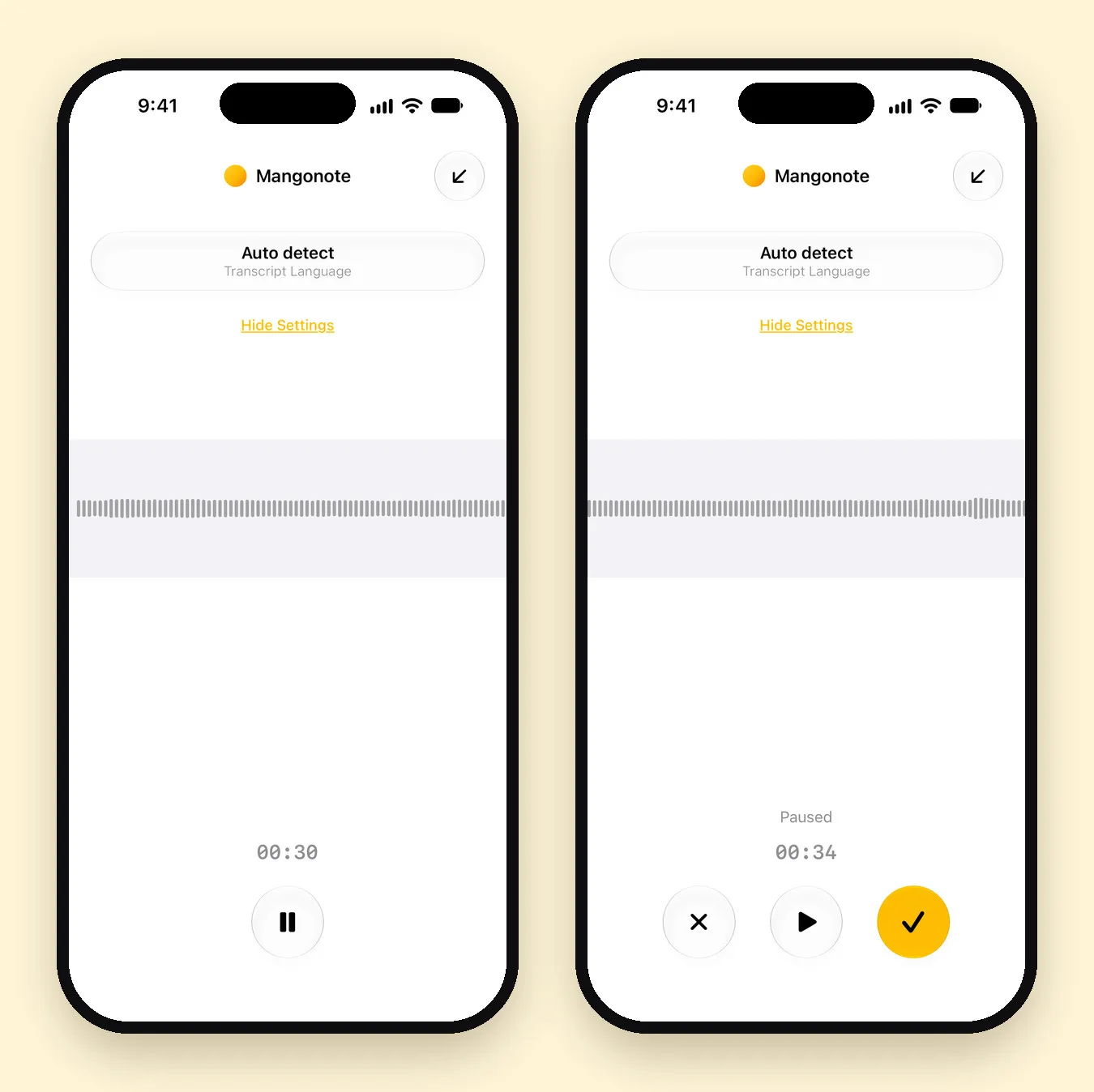
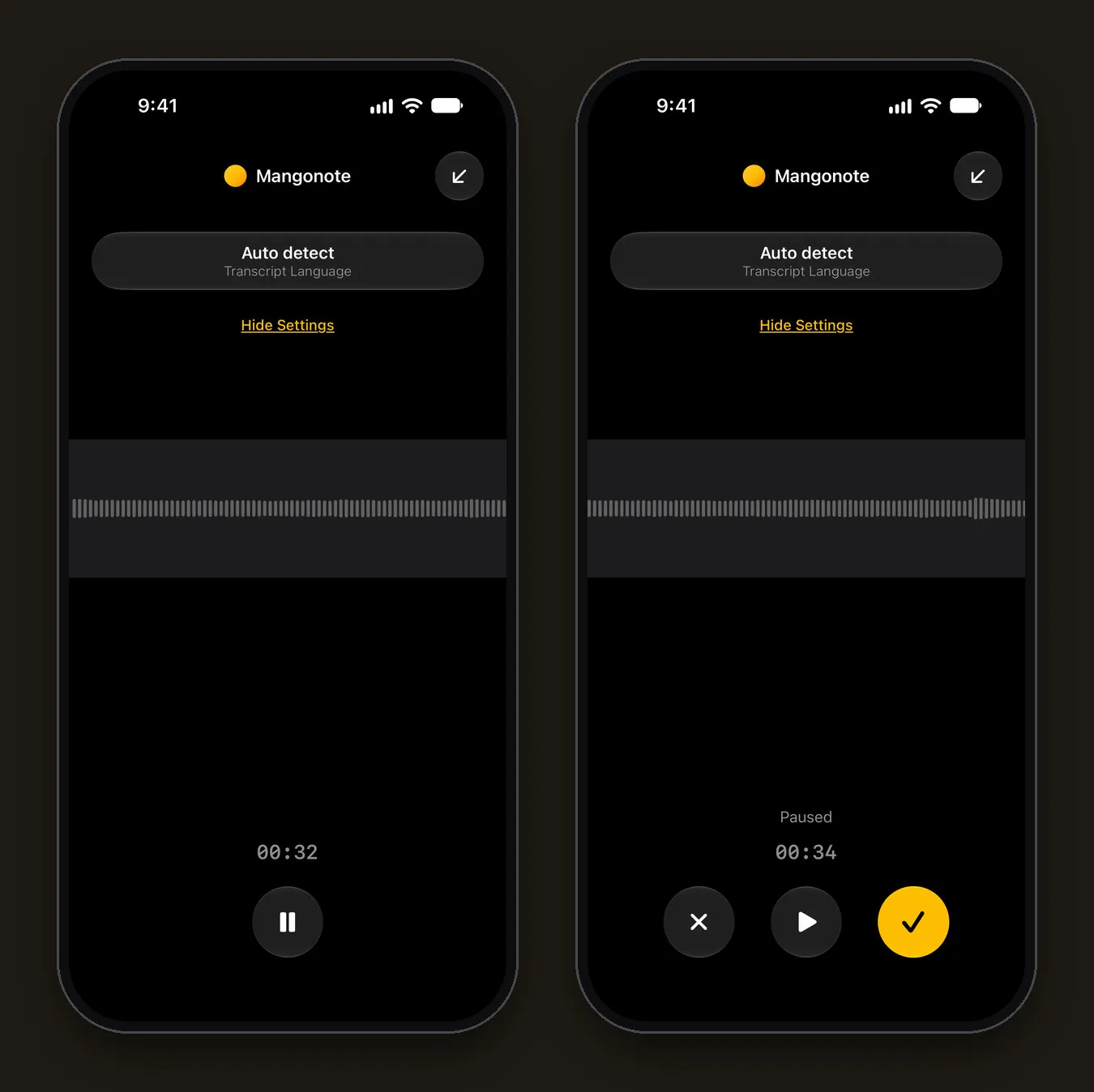
When you finish, Mangonote transcribes the recording on the iPhone. You don’t need a connection for this part, so a meeting room with bad Wi-Fi is fine.
How do you turn the recording into meeting notes?
If Auto summary is on (it is by default), AI writes the notes as soon as the transcript is ready. Otherwise open the note and tap Generate summary.
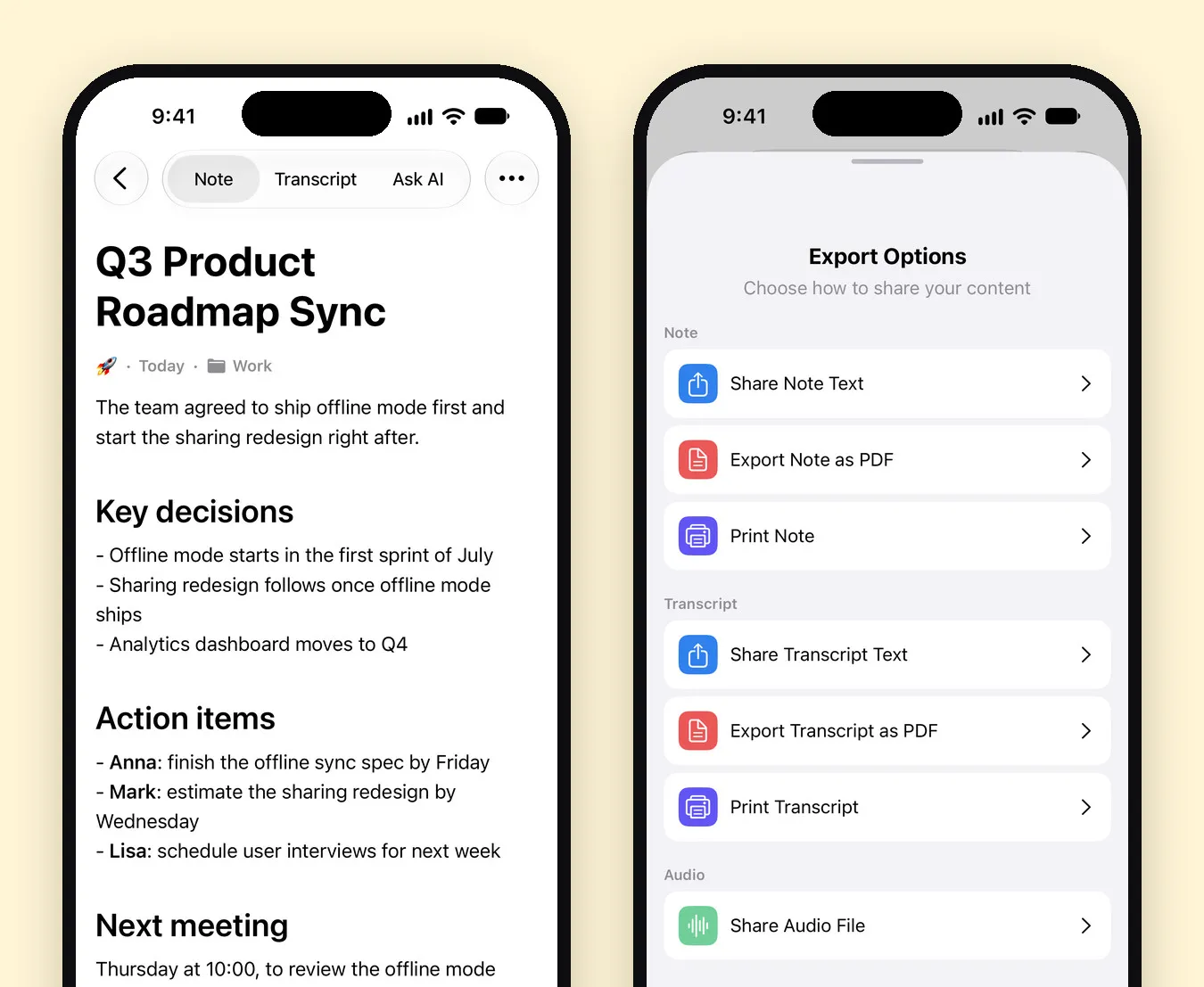
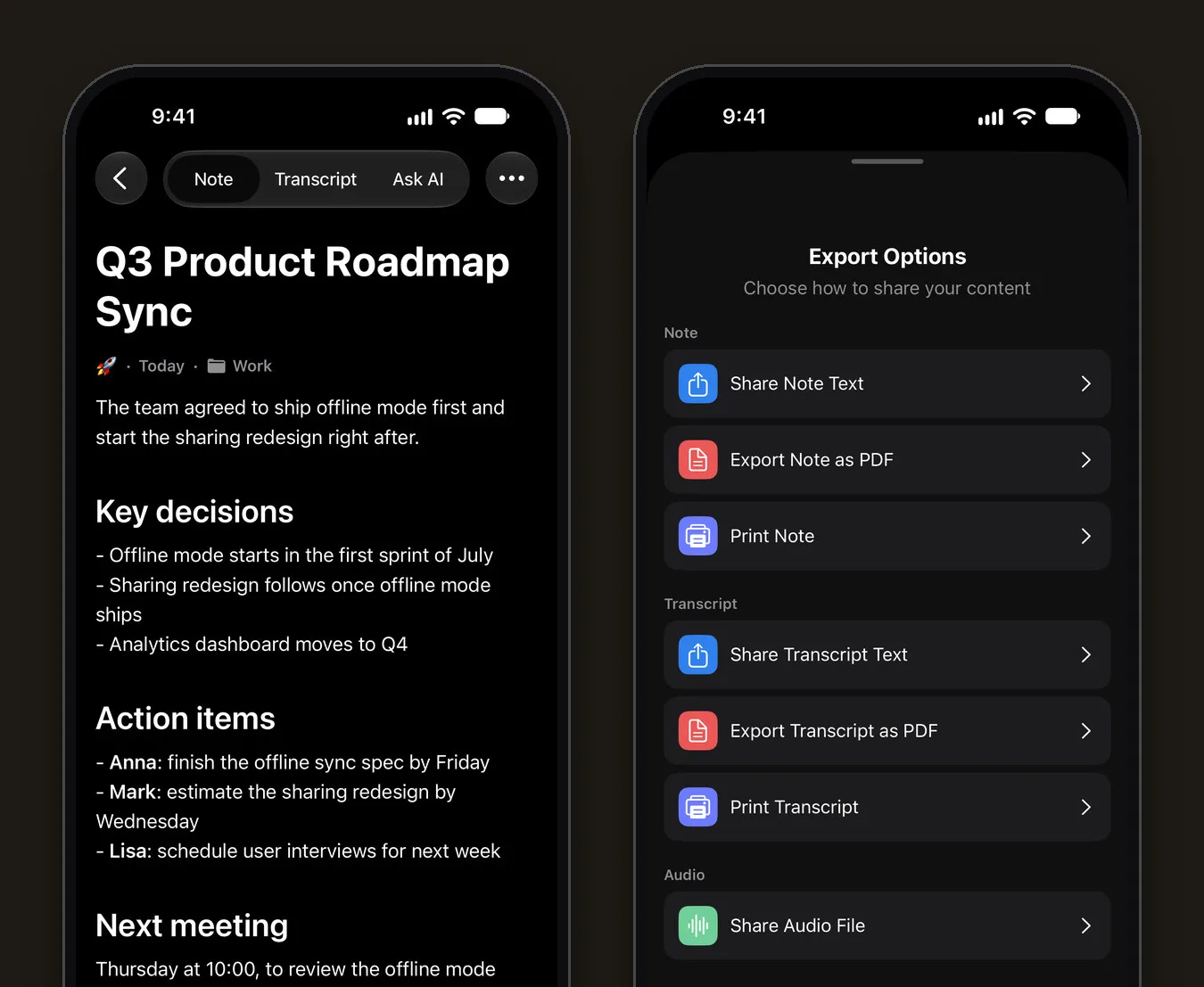
Here’s what that looks like. The note below is one of Mangonote’s built-in sample notes, a product team’s roadmap sync. It opens with a one-line summary, then Key decisions, Action items with names and deadlines, and the Next meeting.
Pick a style that fits the meeting
In Settings › Transcription & AI, the Prompt row decides how notes are written:
- Automatic works out what kind of recording it is (a meeting, a phone call, an interview, a lecture and more) and formats the notes to match.
- Templates cover common meetings: Team Stand-Up Summary, Project Status Report, Quarterly Business Review, Customer Support Resolution, Freelancer Client Brief and Investor Pitch Summary. Tap the pencil next to one to edit it.
- Your own prompt: tap + and describe the format. For example: “Start with the decisions. Then list every action item as Owner: task, deadline. End with open questions.”
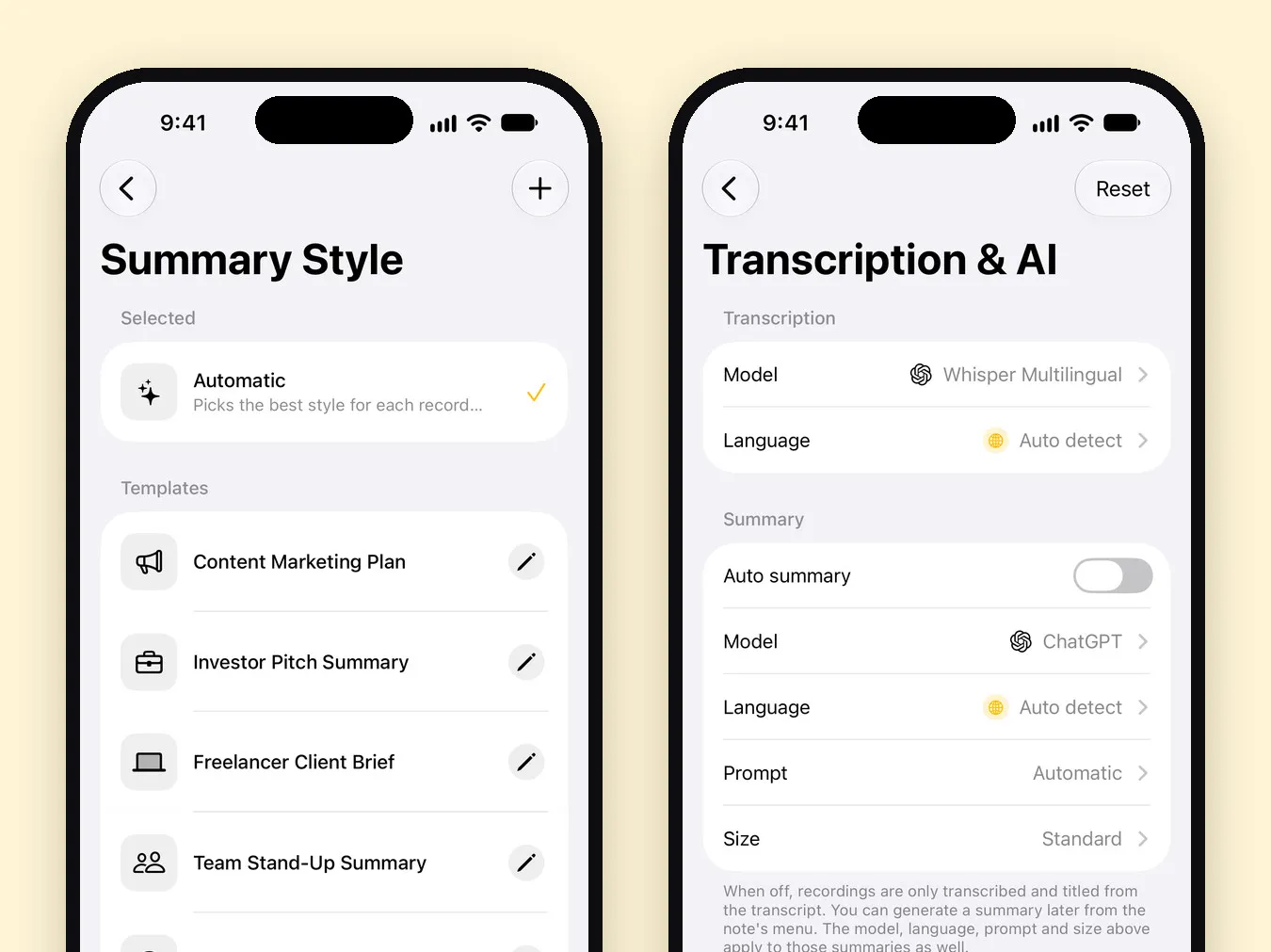
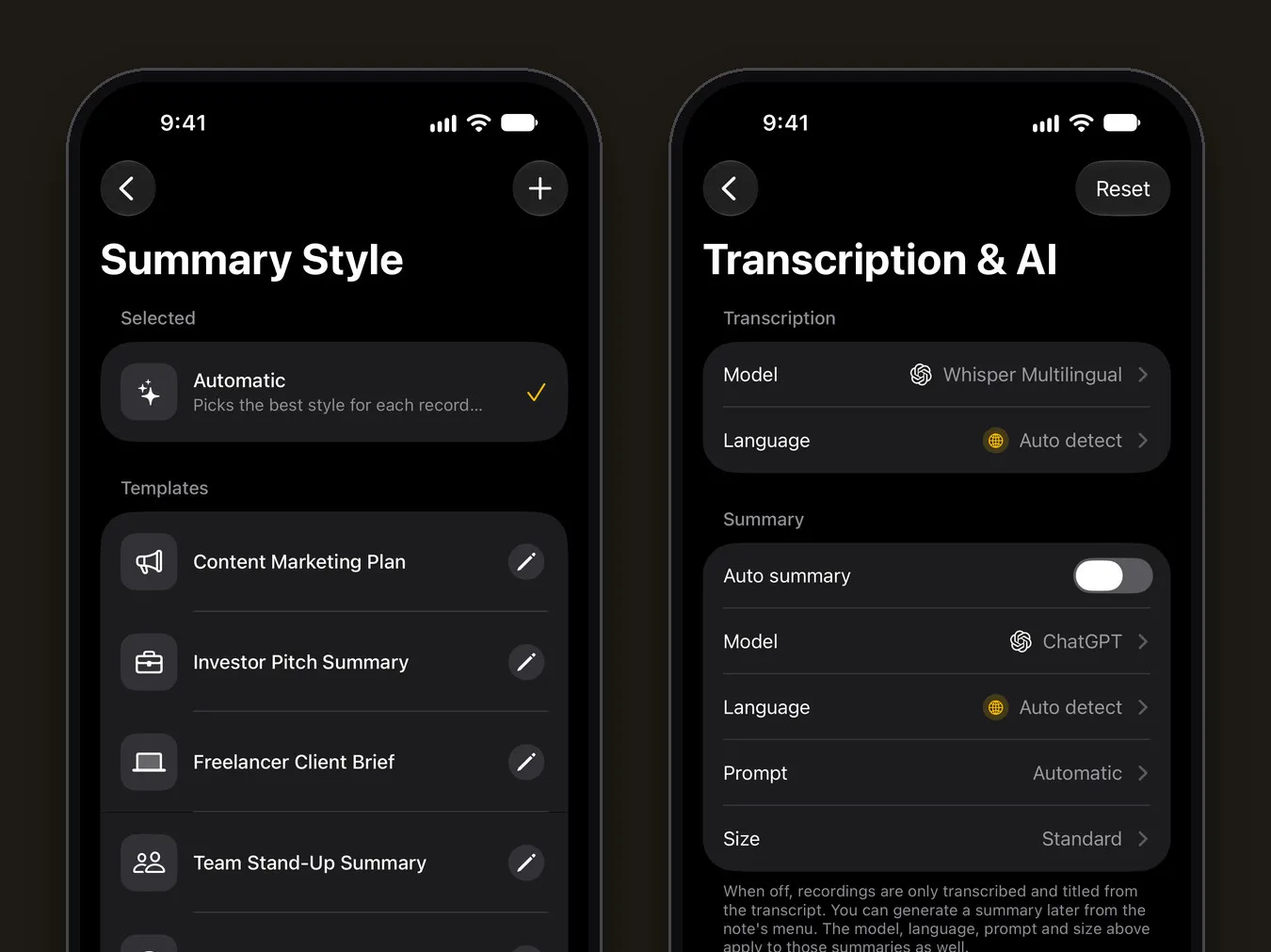
Two more settings on the same screen are worth knowing:
- Size sets the length, from Brief to In-Depth. A 15-minute stand-up needs Brief or Concise; a planning session might need Detailed.
- Language sets the language of the notes. The meeting can be in Spanish and the notes in English.
You also choose the Model that writes the notes, from OpenAI, Anthropic, Google or DeepSeek.
Check before you send
AI notes are a draft. Before sharing, check the three things that cause the most trouble when they’re wrong: names, numbers and deadlines. Open the Transcript tab, find the moment (timestamps help), and play it back.
Ask follow-up questions with Ask AI
The Ask AI tab answers questions about the meeting, so you don’t have to reread the transcript:
- “What did we decide about the launch date?”
- “List everything Mark agreed to do.”
- “Which questions did nobody answer?”
- “Write a short follow-up email to the client.”
Ask AI can also edit the note for you, for example “add a section with the budget numbers”. On the free plan you get 5 Ask AI messages a day.
How do you share the notes with your team?
Open the note’s menu (•••) and tap Share. The Export Options sheet has:
- Share Note Text or Export Note as PDF for the notes themselves
- Share Transcript Text or Export Transcript as PDF for the full transcript
- Share Audio File for the recording
Paste the text into Slack, an email or your project tool. To keep every meeting in Notion or Obsidian, use Settings › Export all notes, which saves each note as a Markdown file.
Keep meetings in one place with a Meetings or Work folder. Folders show up as chips at the top of Home, and search looks through every transcript.
What about Zoom, Teams and Google Meet?
Mangonote doesn’t join calls as a bot. It records through the iPhone’s microphone and imports audio and video files. For an online meeting you have two options:
- Use the meeting app’s own recording (with everyone’s consent), download the file, and import it into Mangonote with + › Audio or Video. Our guide to transcribing a video on iPhone walks through it.
- Record in the room. If you’re on a call from a meeting room speaker, the iPhone can record the room like any other meeting.
Is it legal to record a meeting?
It depends on where you are. Some places allow recording when one person in the conversation agrees; others need everyone’s consent, and workplaces often have their own policies. This isn’t legal advice: the simple rule is to ask everyone first and say it again at the start of the recording.
What happens to the meeting data?
- The audio is transcribed on your iPhone. It’s never sent to Mangonote or to any AI service. With iCloud sync on, recordings are stored in your own iCloud.
- The notes are written by a cloud AI model. For that, only the transcript text goes through Mangonote’s server to the provider of the model you picked, with an anonymous app ID and no name or email. Mangonote asks before any note text goes to AI.
- You can turn AI off in Settings › Transcription & AI › AI processing. Recordings are still transcribed and titled on the device; nothing is sent.
For confidential meetings, turning AI off and keeping the transcript only is a reasonable setup. More on this in how offline transcription works.
Related guides
- How to transcribe an interview
- How to transcribe a video on iPhone
- Make summaries work your way
- Meeting Minutes Template (Free) and How to Write Minutes Fast
- How to Record a Phone Call on iPhone and Get a Transcript
Frequently asked questions
Can I record a meeting on my iPhone?
Yes. The built-in Voice Memos app records audio, and an AI note taker like Mangonote records and then turns the recording into a transcript and meeting notes. Ask everyone in the room first.
Does Mangonote join Zoom, Teams or Google Meet calls?
No. Mangonote records through the iPhone's microphone and imports audio and video files. For an online call, record it with the meeting app's own recording feature, with everyone's consent, then import the file.
Is the meeting audio uploaded?
No. Speech is transcribed on the iPhone, and the recording is never sent to Mangonote or to any AI service. To write the meeting notes, only the transcript text goes through Mangonote's server to the AI model you pick, after you agree.
Can Mangonote tell who said what?
Not yet. Transcripts have timestamps but no speaker labels. Summaries often name people when they're mentioned by name, as in "Anna will finish the spec by Friday", but check them against the transcript.
How long can a meeting recording be?
The free plan has a time limit per recording, shown on the recording screen. Mangonote Plus removes it. For imported files, the app recommends audio under 2 hours for the most reliable results.
Can I make the notes follow my team's format?
Yes. Pick a template such as Team Stand-Up Summary or Project Status Report, or write your own prompt in Settings › Transcription & AI › Prompt.
Start capturing the thoughts you keep losing
Download Mangonote, record your first note, and watch it become searchable text in seconds, right on your iPhone.