To dictate notes on iPhone, use the microphone key on the keyboard for a sentence or two, and record in a voice notes app for anything longer. Mangonote records you, transcribes the recording on the iPhone (even offline), and can then turn the ramble into a structured draft with AI: an email, a blog post outline, a to-do list or a chapter, in your own words.
Here’s when to use which, and how to get from talking to a usable draft.
Keyboard dictation or a recording?
| Keyboard dictation | Record, then transcribe | |
|---|---|---|
| How it works | Words appear in the text field as you speak | You talk, then the recording becomes text |
| Best for | A message, a search, a short note | Ideas, drafts, long thoughts, walks |
| Thinking pauses | Can cut you off | Fine; pause as long as you like |
| Punctuation | Say it, or auto-punctuation in supported languages | Added to the transcript |
| Keeps the audio | No | Yes, to check what you said |
| Turn it into a draft | You edit by hand | AI summary, your own prompt, or Ask AI |
The iPhone’s built-in dictation is turned on in Settings › General › Keyboard › Enable Dictation; then tap the microphone on the keyboard. Apple explains the commands in Dictate text on iPhone. Our guide to voice to text on iPhone compares the two in more detail.
How to dictate long notes in Mangonote
- Tap Start Recording.
- Talk. Don’t worry about punctuation or perfect sentences.
- Tap pause when you need to think, and play to continue.
- Tap the checkmark to finish. Mangonote transcribes it on your iPhone.
A few habits make the transcript much cleaner:
- Hold the phone 20–30 cm from your mouth, or use wired earbuds with a mic when you’re walking.
- Say names and unusual words clearly the first time, then fix them once in the transcript.
- Talk in chunks. Finish a thought, pause, start the next. Pauses often become line breaks, which makes editing easier.
- Set the language in Settings › Transcription & AI › Language if you always dictate in one.
From ramble to draft
The transcript is a faithful copy of what you said, filler and all. To get a draft, give the AI a job. There are three ways.
1. A custom summary prompt
In Settings › Transcription & AI › Prompt, tap + and save a prompt you’ll reuse. Every new recording then comes back in that format.
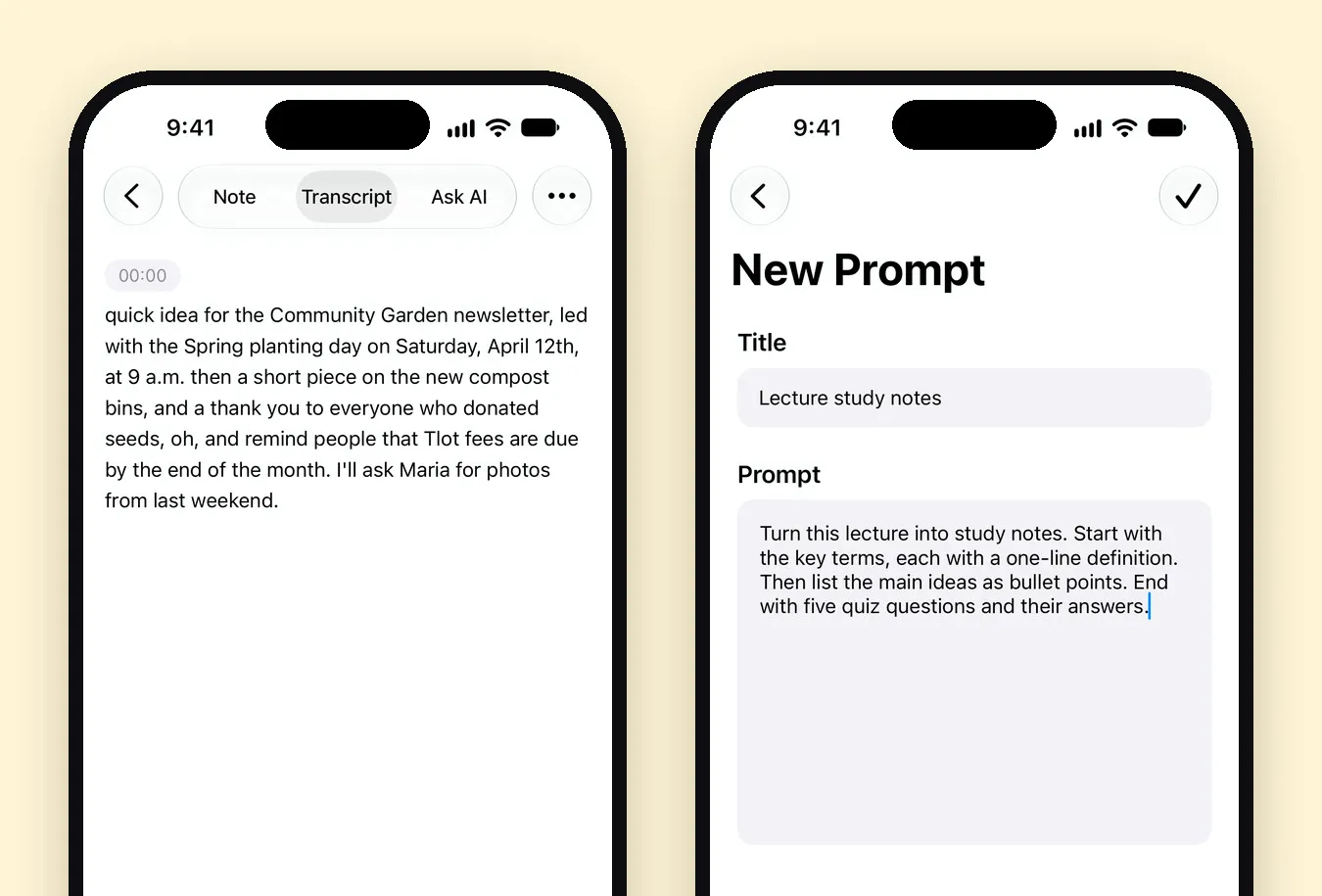
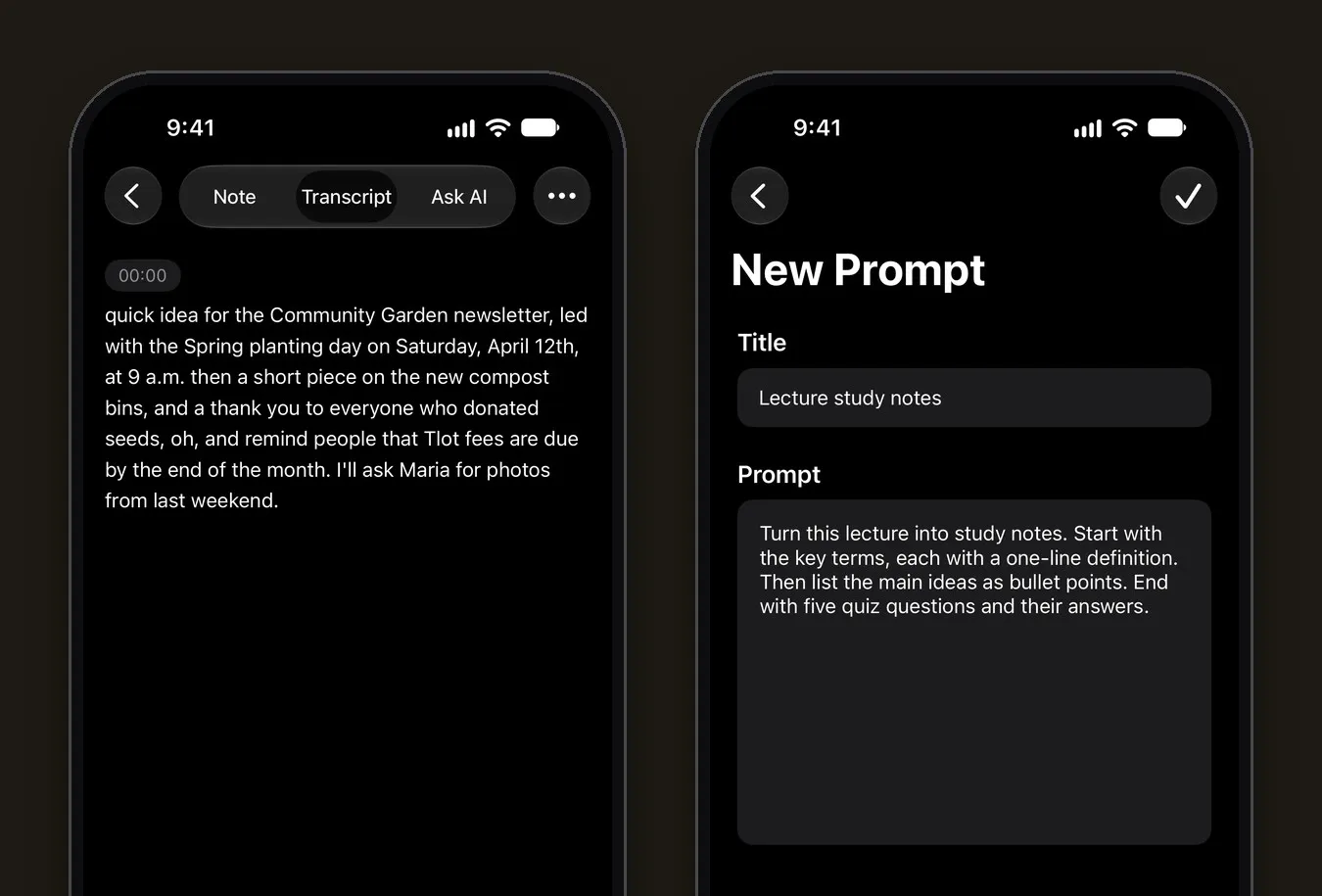
Prompts that work well for drafts:
- Blog post: Turn this into a blog draft with a title, an intro and H2 sections. Keep my wording and examples where you can; only fix grammar and remove repetition.
- Email: Write a short, friendly email from this. Keep every date and number exactly as I said it.
- To-do list: Extract every task as a checklist, grouped by project. Ignore everything that isn’t a task.
- Book or story: Clean this up into prose, keeping my voice. Don’t add events or details I didn’t say.
2. Ask AI
For one-off jobs, open the note’s Ask AI tab: “Rewrite this as a LinkedIn post”, “Give me three title ideas”, “What did I forget to mention?” Ask AI can also edit the note for you.
3. The Voice Memo Notes template
If you just want your thoughts tidied up, the built-in Voice Memo Notes style turns a spoken memo into clean notes without a custom prompt.
A workflow for writers
- One folder per project. Add each dictation to a folder like Novel or Newsletter; folders show up as chips at the top of Home.
- Dictate on walks. It’s often easier to talk a scene through than to type it.
- Keep the transcript as the source. Use AI for structure, but go back to your own words for the final draft.
- Export to your writing app. Settings › Export all notes saves every note as a Markdown file, in a folder per note folder, ready for Obsidian, iA Writer, Ulysses or a plain folder.
What happens to your words
Recordings are transcribed on your iPhone and aren’t sent to Mangonote or to any AI service. When you ask for a draft, only the transcript text goes to the AI model you picked, after you agree. If you’re dictating something private, like a journal entry, you can turn AI off in Settings › Transcription & AI › AI processing and keep only the transcript.
Related guides
- Voice to text on iPhone: dictation vs. a transcription app
- How to summarize a recording with AI
- 6 ways to get more out of your voice notes
- Voice Journaling on iPhone: Keep a Diary by Talking
- Export Voice Notes to Markdown, Obsidian or Notion
Frequently asked questions
What's the difference between dictation and transcription?
Dictation types your words live into a text field as you speak, and works best for short text. Transcription turns a finished recording into text afterwards, which suits long, unbroken talking.
Do I need to say punctuation?
With the iPhone keyboard's dictation you can say "comma" or "new paragraph", and in supported languages it adds punctuation automatically. When you record in Mangonote, just talk naturally; the transcript gets punctuation, and pauses often start a new line.
Will AI rewrite what I said?
Only if you ask it to. The transcript is your words. Summaries, drafts and Ask AI edits are separate and optional, and you can write a prompt that keeps your wording.
Can I dictate a book on iPhone?
Yes. Many writers record a chapter or a scene at a time, keep each project in a folder, and export the transcripts as Markdown to edit in their writing app.
Does it work offline?
Recording and transcription in Mangonote work offline. Turning the transcript into a draft with AI needs a connection.
Start capturing the thoughts you keep losing
Download Mangonote, record your first note, and watch it become searchable text in seconds, right on your iPhone.