Voice journaling means keeping a diary by talking: you record two to five minutes about your day, and the app turns it into text you can read and search later. On iPhone, an app like Mangonote transcribes each entry on the device, keeps entries in a Journal folder, and can work with AI switched off, so a private journal stays private.
Why talk instead of write?
- It’s faster. Most people talk much faster than they type on a phone.
- It’s easier to start. No blank page, no pen; just tap and talk.
- It catches tone. Months later, you can play back how you sounded, not only what you wrote.
- It fits anywhere: on a walk, in the car (parked), before bed.
Set up a private voice journal
- Create a folder called Journal (or one per year) in Mangonote.
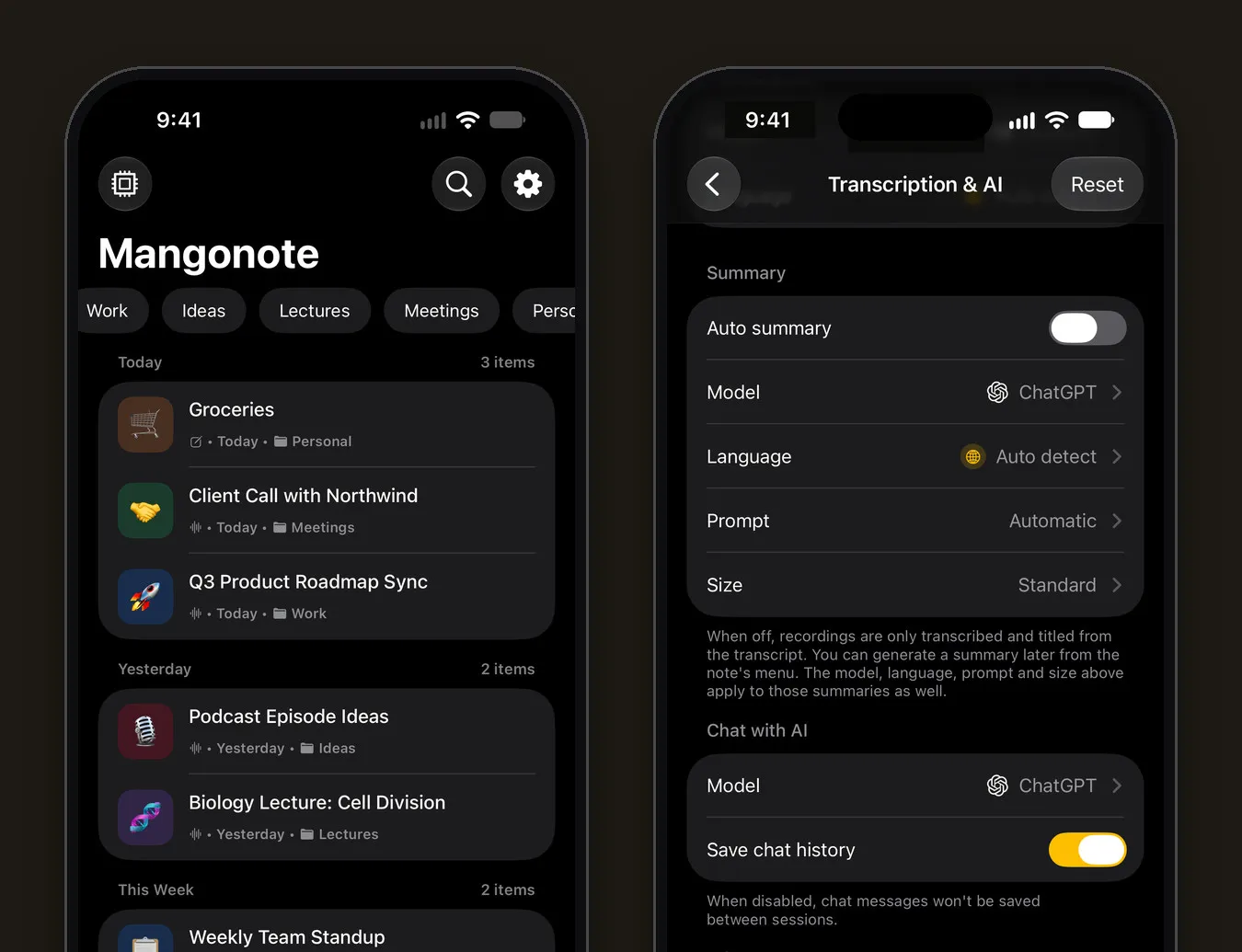
- Decide on AI. For a fully private journal, turn off AI processing in Settings › Transcription & AI. Recordings are still transcribed and titled on the iPhone, and nothing is sent. If you’d like AI to summarize entries, leave it on; only the transcript text goes to the AI model you pick, after you agree.
- Pick a time you’ll keep: morning coffee, the commute home, before sleep.
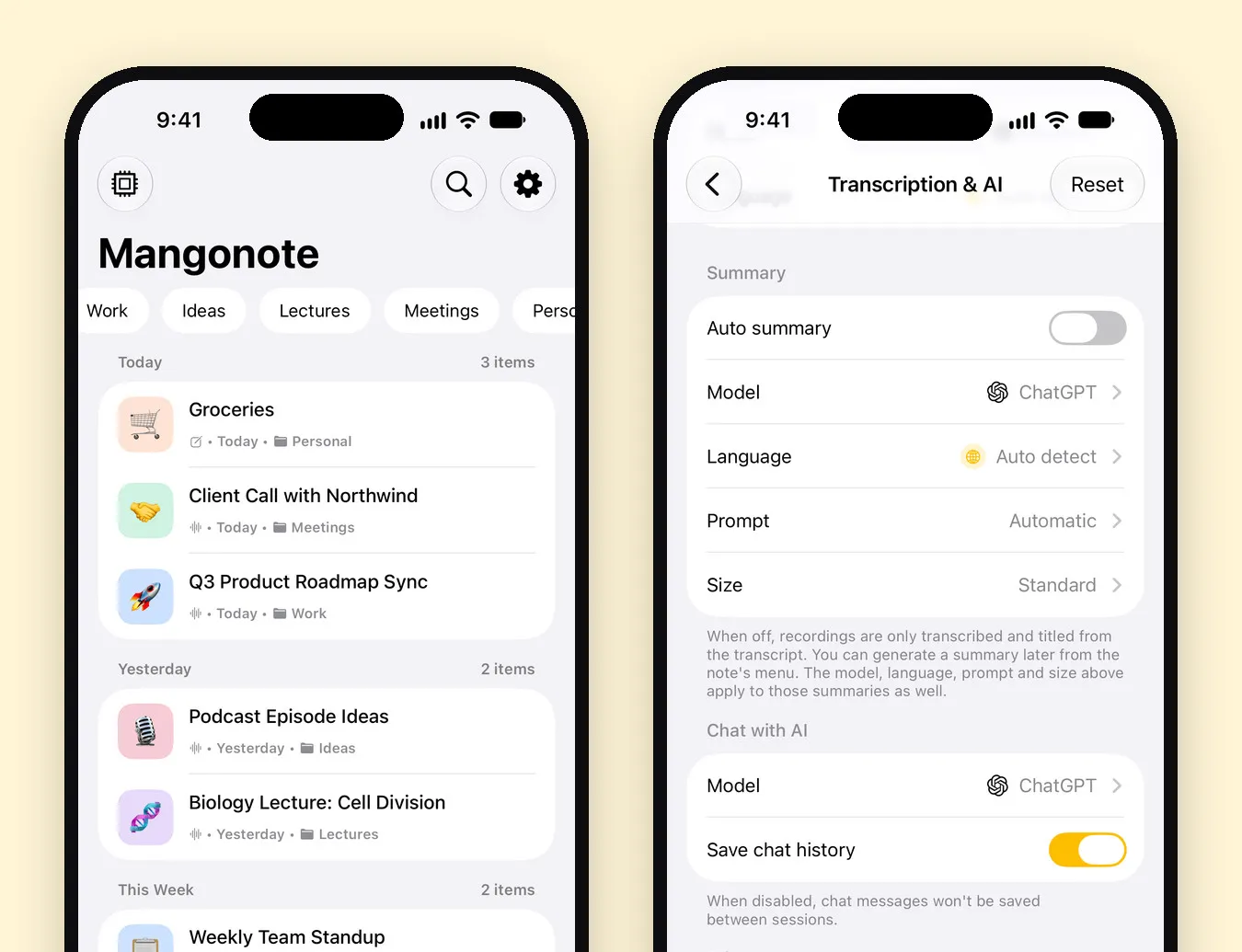
A two-minute daily routine
- Tap Start Recording.
- Answer one prompt (below), out loud, for two minutes.
- Tap the checkmark and add the note to your Journal folder.
That’s it. Don’t edit; the point is to keep going.
Voice journal prompts
- What took most of my energy today, and what gave me energy?
- What’s one thing I’m glad happened?
- What’s on my mind that I haven’t said to anyone?
- What would make tomorrow a good day?
- What did I learn this week?
- What am I avoiding, and why?
Look back without rereading everything
- Search finds every entry that mentions a person, place or word.
- Weekly look-back: on Sundays, scroll your Journal folder and jot one line about the week.
- With AI on, Ask AI on an entry can answer “What was I worried about here?” or “List the good things I mentioned”.
Keep it yours
- Recordings are transcribed on the iPhone and aren’t uploaded to be transcribed. With iCloud sync on, they’re stored in your own iCloud account.
- Settings › Export all notes saves every entry as a Markdown file, in a folder per note folder, so your journal is never locked in.
- Settings › Delete all data removes everything from the iPhone and from your iCloud.
Voice journaling isn’t a replacement for professional help. If what you’re recording worries you, talk to someone you trust or a professional.
Related guides
- Is your AI note taker private? 7 questions to ask
- How to dictate notes on iPhone and turn them into drafts
- Export voice notes to Markdown, Obsidian or Notion
Frequently asked questions
What is voice journaling?
Keeping a diary by talking instead of writing. You record a few minutes about your day or your thoughts, and an app turns it into text you can read and search later.
Is voice journaling private?
It depends on the app. Mangonote transcribes on the iPhone and doesn't upload recordings to transcribe them. For a journal, you can turn AI processing off so nothing is sent anywhere.
How long should a voice journal entry be?
Two to five minutes is plenty. A short entry you keep doing every day beats a long one you skip.
Can I search old entries?
Yes. Every entry is transcribed, and search looks through all your transcripts.
Can I keep my journal if I change apps?
Yes. Settings › Export all notes saves every note as a Markdown file, with your folders kept as folders.
Start capturing the thoughts you keep losing
Download Mangonote, record your first note, and watch it become searchable text in seconds, right on your iPhone.