To export voice notes from Mangonote, open Settings › Export all notes: you get one zip with every note as a Markdown file, in a folder per note folder. Unzip it and drop the folder into an Obsidian vault, import the files into Notion, or keep them in any folder. For a single note, use the note’s menu › Share to send it as text or a PDF.
Export all notes as Markdown
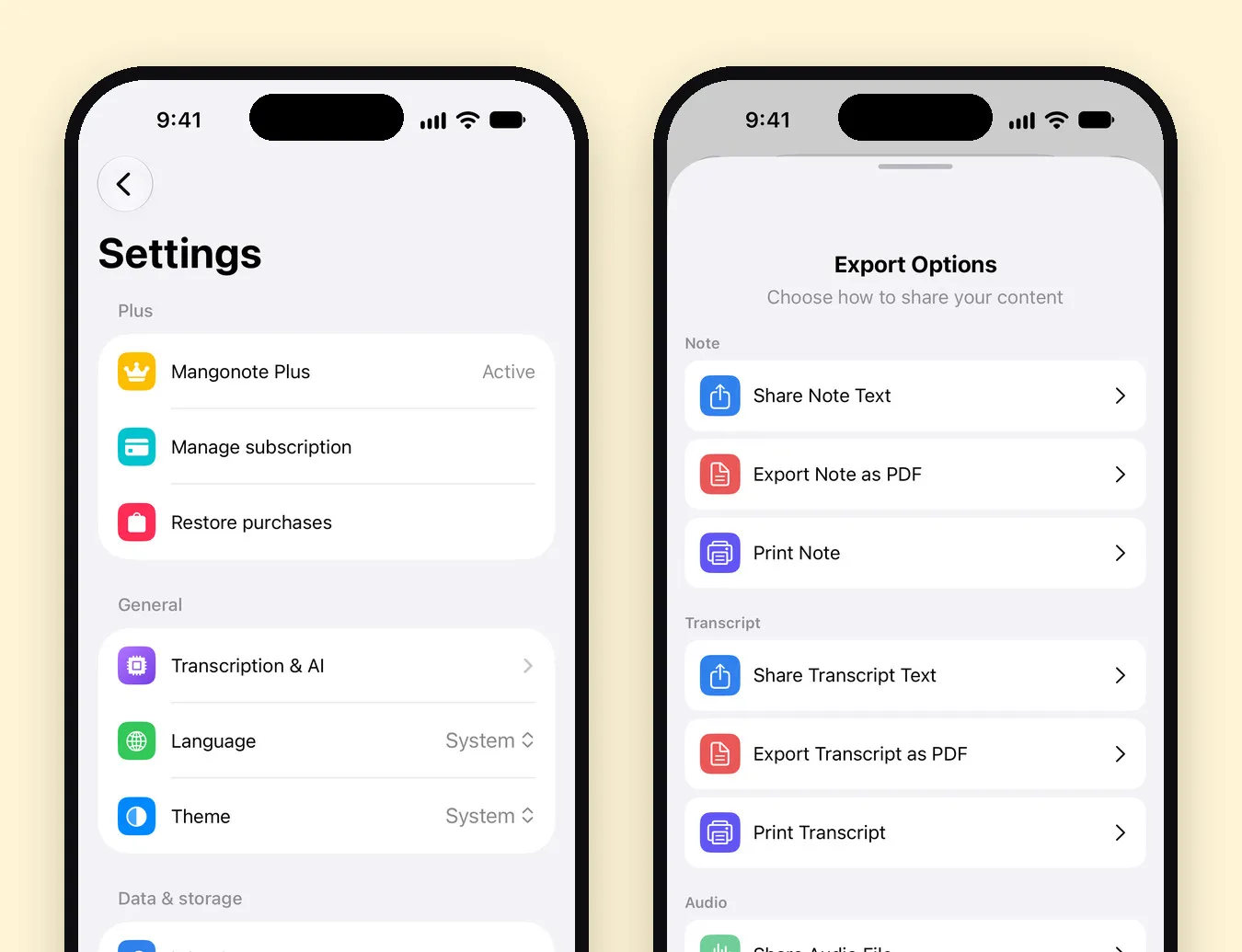
- Open Settings in Mangonote.
- Tap Export all notes.
- In the share sheet, save the zip to Files, AirDrop it to your Mac, or send it to another app.
The zip is named like Mangonote Notes 2026-11-13. Inside:
- A folder per note folder, e.g. Meetings, Lectures. Notes without a folder sit at the top level.
- One
.mdfile per note, named date first:2026-09-22 Standup.md. Files sort by age in any file browser. - Duplicates are numbered, so nothing gets overwritten.
What’s inside each Markdown file
# 🚀 Q3 Product Roadmap Sync

November 13, 2026 at 10:00 AM · Work

The team agreed to ship offline mode first…

## Key decisions
- Offline mode starts in the first sprint of July

## Transcript

[timestamped transcript]
The heading has the note’s emoji and title, then the date, time and folder, the AI summary (if the note has one), and a Transcript section with timestamps. Recordings aren’t included; see below.
Import into Obsidian
An Obsidian vault is a folder of Markdown files, so there’s nothing to convert:
- Unzip the export on your Mac or in Files.
- Copy the folder into your vault, for example as Voice notes.
- Obsidian picks the notes up; the folder structure stays the same.
Tip: export again later and copy only the new files, since date-first names make them easy to spot.
Import into Notion
Notion can import Markdown files through its Import option. Unzip the export, then import the .md files; each becomes a Notion page with the headings and lists intact. Check Notion’s own help for the current import steps.
Export a single note
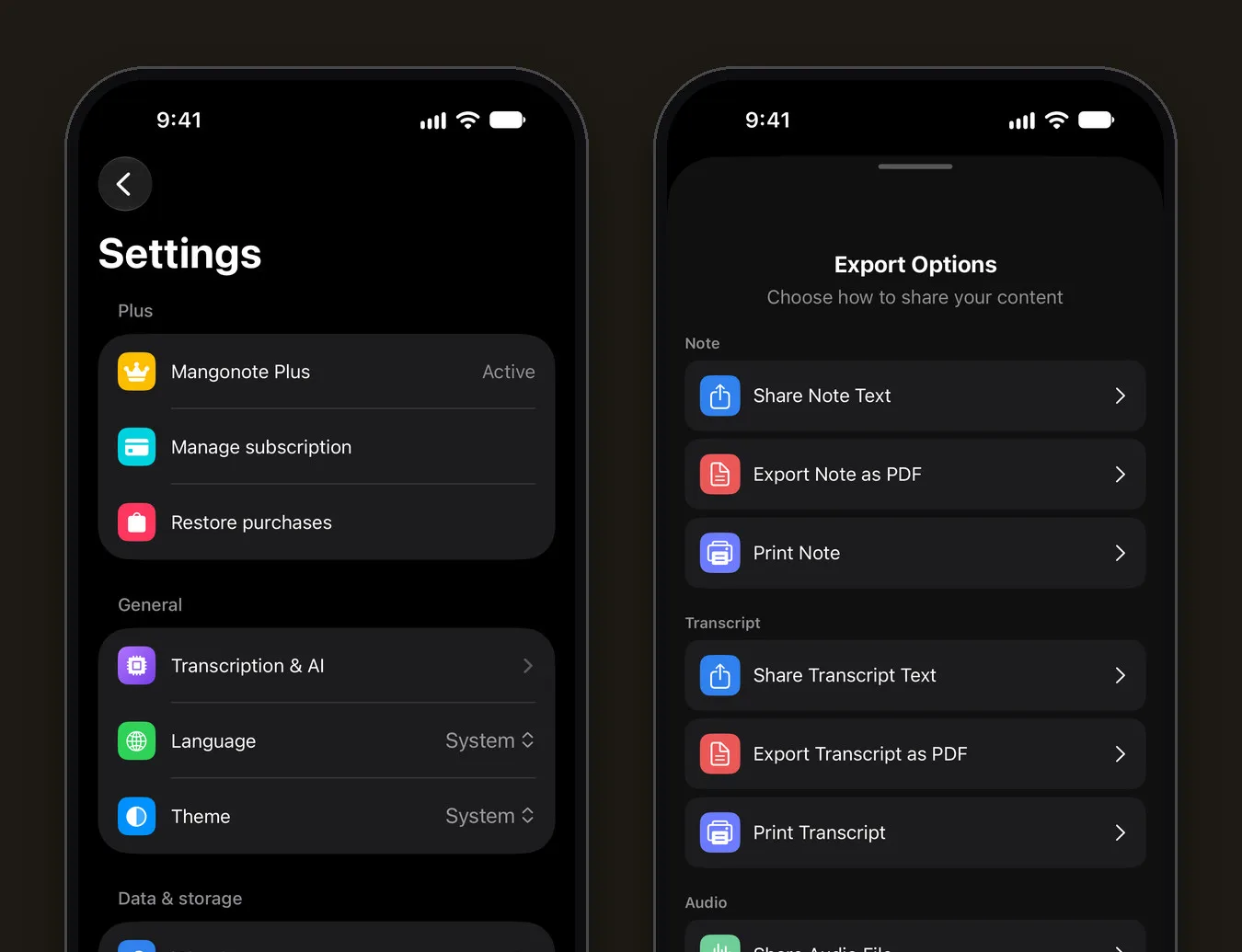
Open the note, tap the menu (•••) › Share. Export Options has:
- Share Note Text / Export Note as PDF / Print Note
- Share Transcript Text / Export Transcript as PDF / Print Transcript
- Share Audio File
Share Note Text is the quickest way into Apple Notes, an email or a chat.
Keeping the recordings
The Markdown export is text only. To keep audio:
- One recording: note menu › Share › Share Audio File.
- All recordings: with iCloud sync on, recordings live in Files › iCloud Drive › Mangonote.
Related guides
- 6 ways to get more out of your voice notes
- How to dictate notes on iPhone and turn them into drafts
- Voice journaling on iPhone
Frequently asked questions
What's in each exported Markdown file?
A heading with the note's emoji and title, the date, time and folder, the summary, and a Transcript section with the timestamped transcript.
Are recordings included in the export?
No, the Markdown export is text. To keep a recording, open the note's menu, tap Share and use Share Audio File. With iCloud sync on, recordings are also in Files › iCloud Drive › Mangonote.
How are the files named?
Date first, then the title, like 2026-09-22 Standup.md, inside a folder named after the note's folder. Files then sort by date.
Can I export a single note?
Yes. Open the note's menu (•••), tap Share, and choose Share Note Text, Export Note as PDF, or the transcript options.
Do I need Mangonote Plus to export?
No. Export all notes and the per-note share options work on the free plan too.
Start capturing the thoughts you keep losing
Download Mangonote, record your first note, and watch it become searchable text in seconds, right on your iPhone.