
To transcribe an audio file on iPhone, save it to the Files app, then import it into a transcription app such as Mangonote: tap +, choose Audio, and pick the file. Mangonote turns MP3, M4A, WAV and other common formats into a timestamped transcript on the iPhone itself, without uploading the audio. It works offline, and you can summarize or export the text afterwards.
Here’s how to get the file into the right place, the import itself, and what to do when a file won’t import.
Step 1: Get the audio file into the Files app
Mangonote picks audio files through the iPhone’s Files app, so the file needs to be there first:
| Where the file is | What to do |
|---|---|
| Email attachment | Touch and hold the attachment, tap Share › Save to Files |
| Messages or WhatsApp | Open the file, tap Share › Save to Files |
| AirDrop from a Mac | Accept it; audio files usually land in Files › Downloads |
| Voice Memos | Open the memo’s More (•••) menu › Share › Save to Files (full guide) |
| Google Drive, Dropbox, OneDrive | Install the app; it then appears in Files under Browse |
| A website | Download it in Safari; it goes to Files › Downloads |
Videos are different: save them to Photos and import them with + › Video. See how to transcribe a video on iPhone.
Step 2: Import the file into Mangonote
- Open Mangonote and tap the + button at the bottom right of Home.
- In Import Options, tap Audio.
- Tap Browse, find the folder and tap the file.
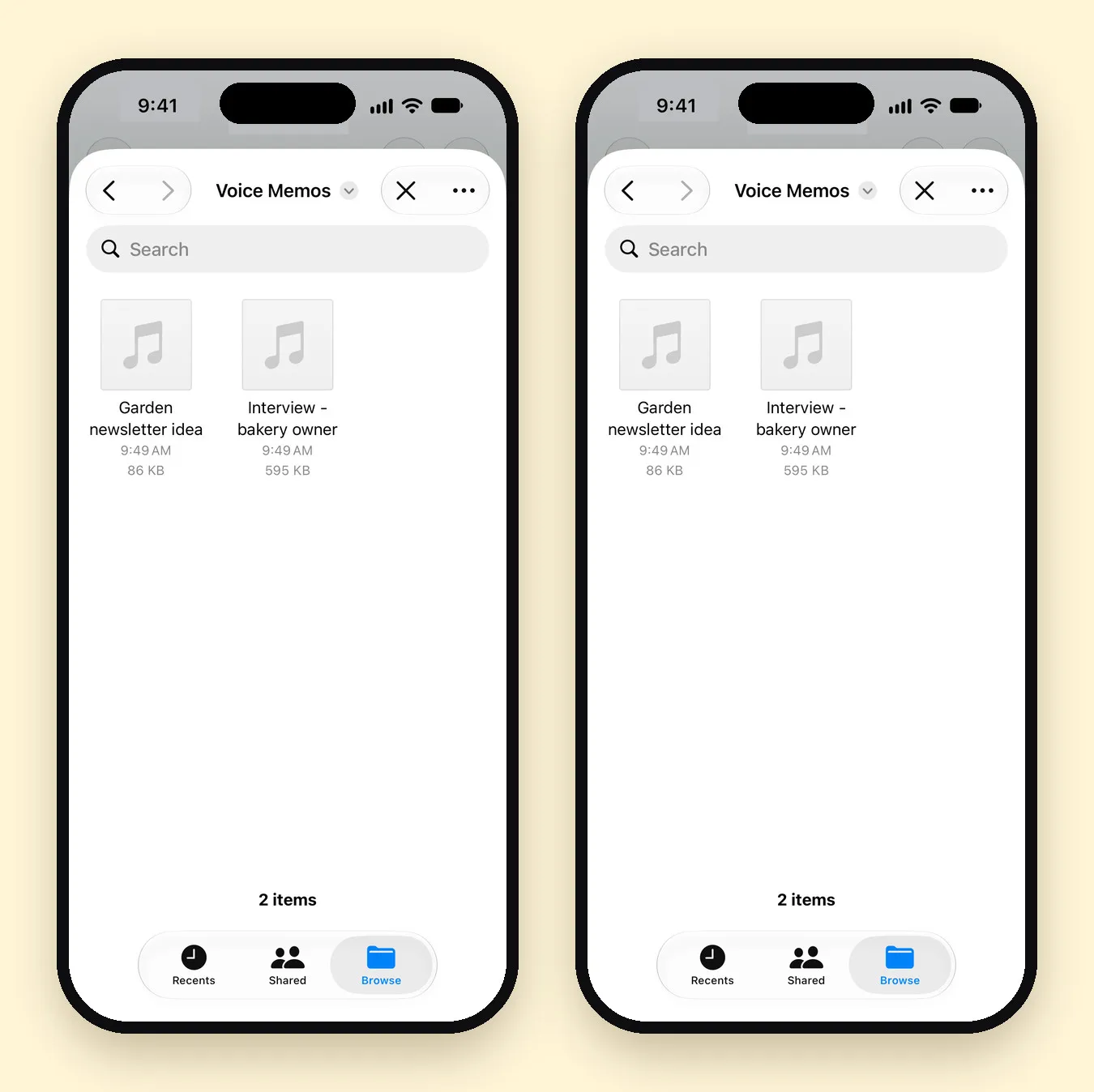
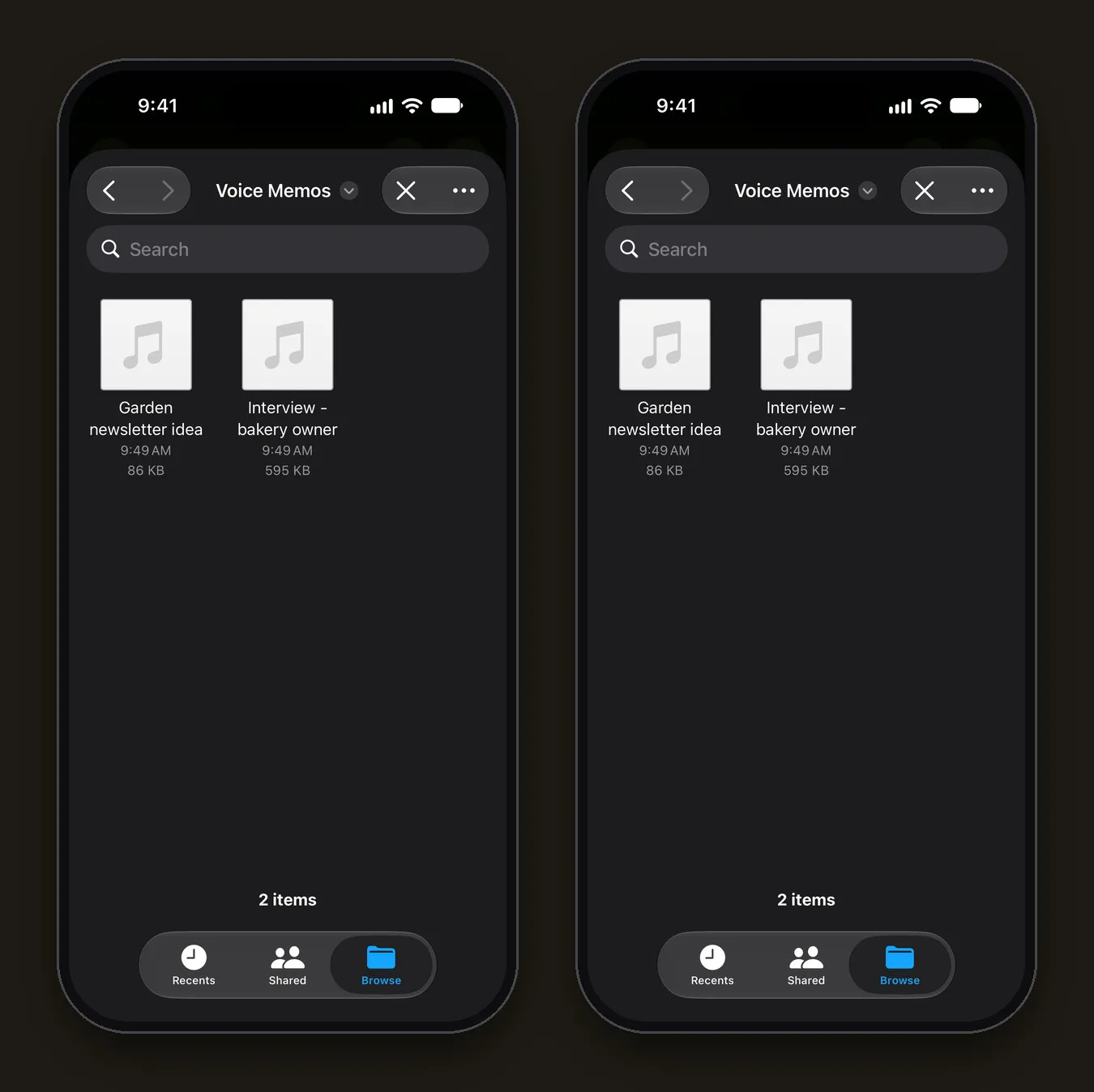
Mangonote copies the file into the app and starts Transcribing audio. Keep the app open until you see Processing complete!, then tap View Note. The speech model runs on your iPhone, so this step needs no internet connection.
Step 3: Check the transcript
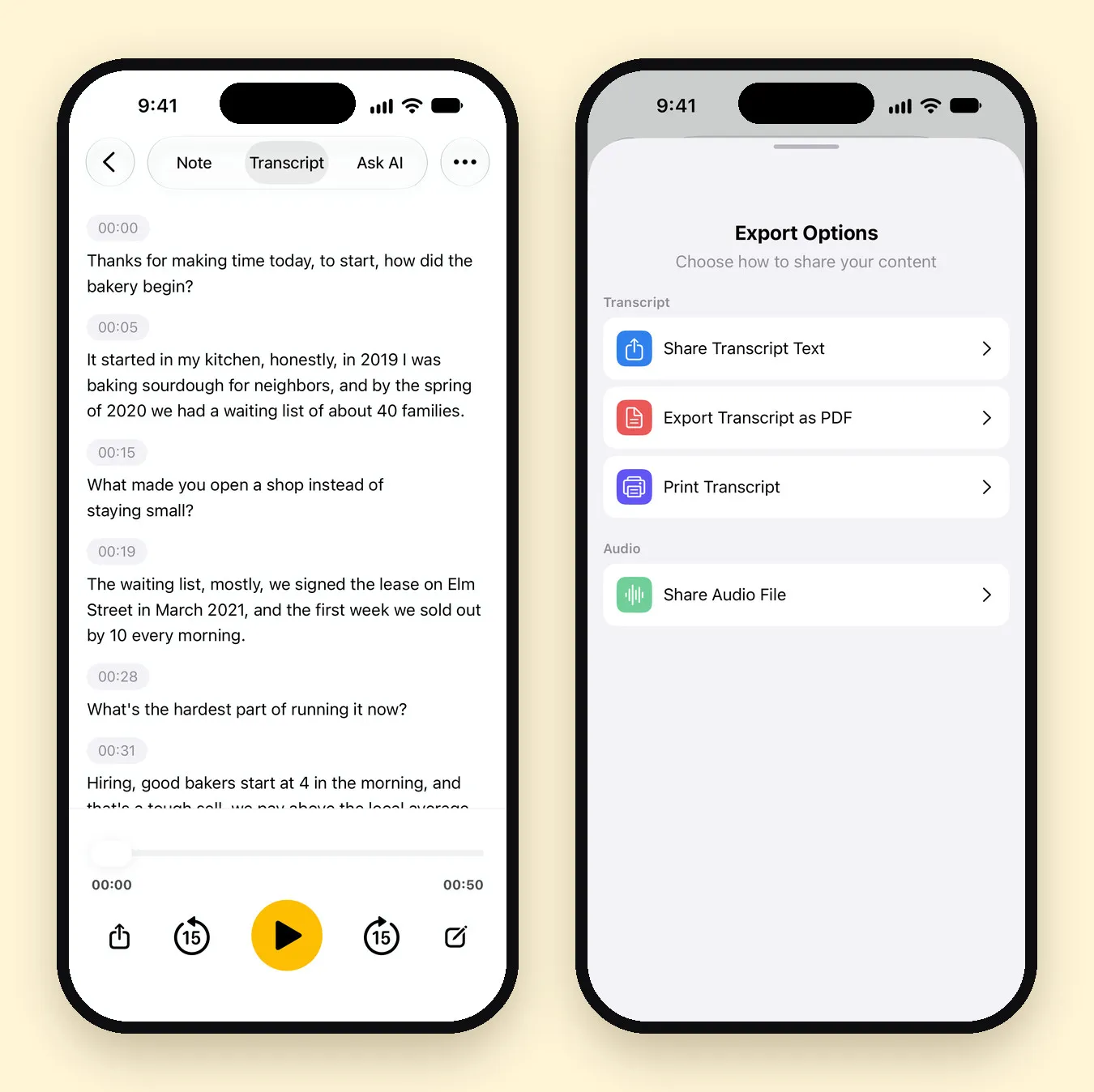
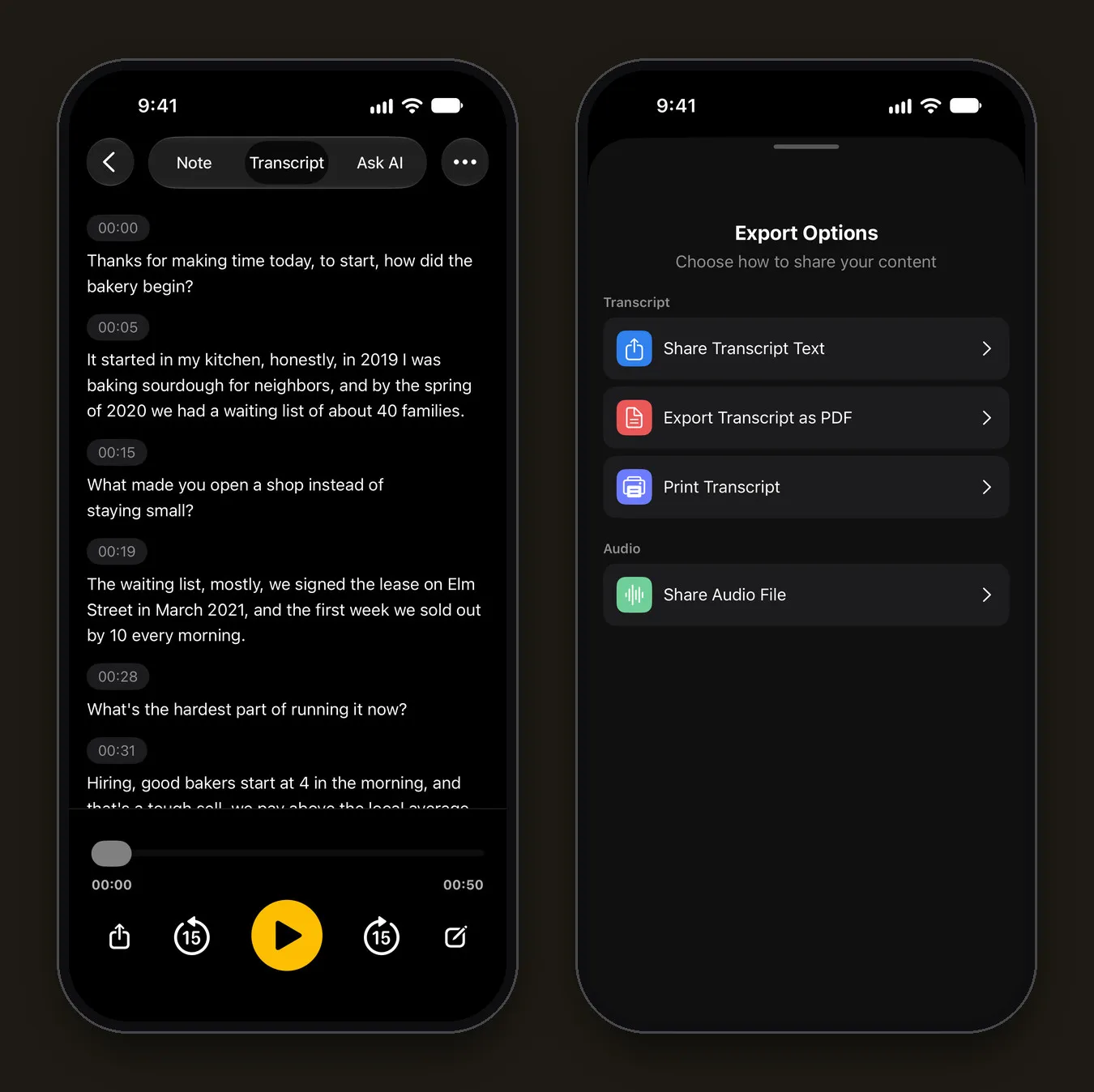
The Transcript tab shows the text in timestamped lines with a player below. Tap any line to correct it, and use the 15-second skip buttons to replay a part you’re unsure about.
When we imported a 51-second M4A interview with two speakers, names, years and numbers came out right (“a waiting list of about 40 families”, “in March 2021”). The transcript doesn’t label who’s speaking, so add names yourself if you need them.
Step 4: Summarize or export it
- Summary: on the Note tab, tap Generate summary. AI writes a title, a summary and any decisions or action items. Only the transcript text is sent to the AI model you pick, and only after you agree.
- Questions: the Ask AI tab answers questions about the recording.
- Export: open the note’s menu (•••) › Share › Share Transcript Text or Export Transcript as PDF.
Which formats work?
Mangonote imports the audio formats the iPhone itself can play, including MP3, M4A (AAC and Apple Lossless), WAV and AIFF. Recordings from most voice recorders, phones and video-call apps are in one of these.
If you see “This audio format isn’t supported. Try an MP3, M4A or WAV file.”, convert the file first, for example by exporting it again from the app that made it.
Tips for long or difficult files
- Under 2 hours gives the most reliable results; split longer recordings.
- Pick the language in Settings › Transcription & AI › Language if you know it, instead of Auto detect.
- Try another model if names or jargon come out wrong. Our Whisper on iPhone guide explains which on-device model suits which language.
- The free plan has a per-file length limit, shown when you import. Mangonote Plus removes it.
Related guides
- How to transcribe voice memos on iPhone
- How to transcribe an interview
- Offline voice transcription on iPhone
- How to Record a Phone Call on iPhone and Get a Transcript
- How to Transcribe a Podcast and Write Show Notes on iPhone
Frequently asked questions
Which audio formats can I transcribe?
MP3, M4A and WAV work, and so do other formats the iPhone can play. If a format isn't supported, Mangonote says so and suggests converting it to MP3, M4A or WAV.
How long can the audio file be?
Mangonote recommends audio under 2 hours for the most reliable results. The free plan has a shorter limit per file, shown when you import; Mangonote Plus removes it.
Do I need an internet connection?
Not for transcription. The file is transcribed on your iPhone, so it works offline. You only need a connection to download the file and for optional AI summaries.
Is the audio file uploaded?
No. Mangonote transcribes it on the iPhone and doesn't send the audio to its servers or to any AI service.
Can I transcribe a file stored in Google Drive or Dropbox?
Yes, if that app is installed and shows up in the Files app under Browse. Otherwise, download the file to your iPhone first.
Start capturing the thoughts you keep losing
Download Mangonote, record your first note, and watch it become searchable text in seconds, right on your iPhone.