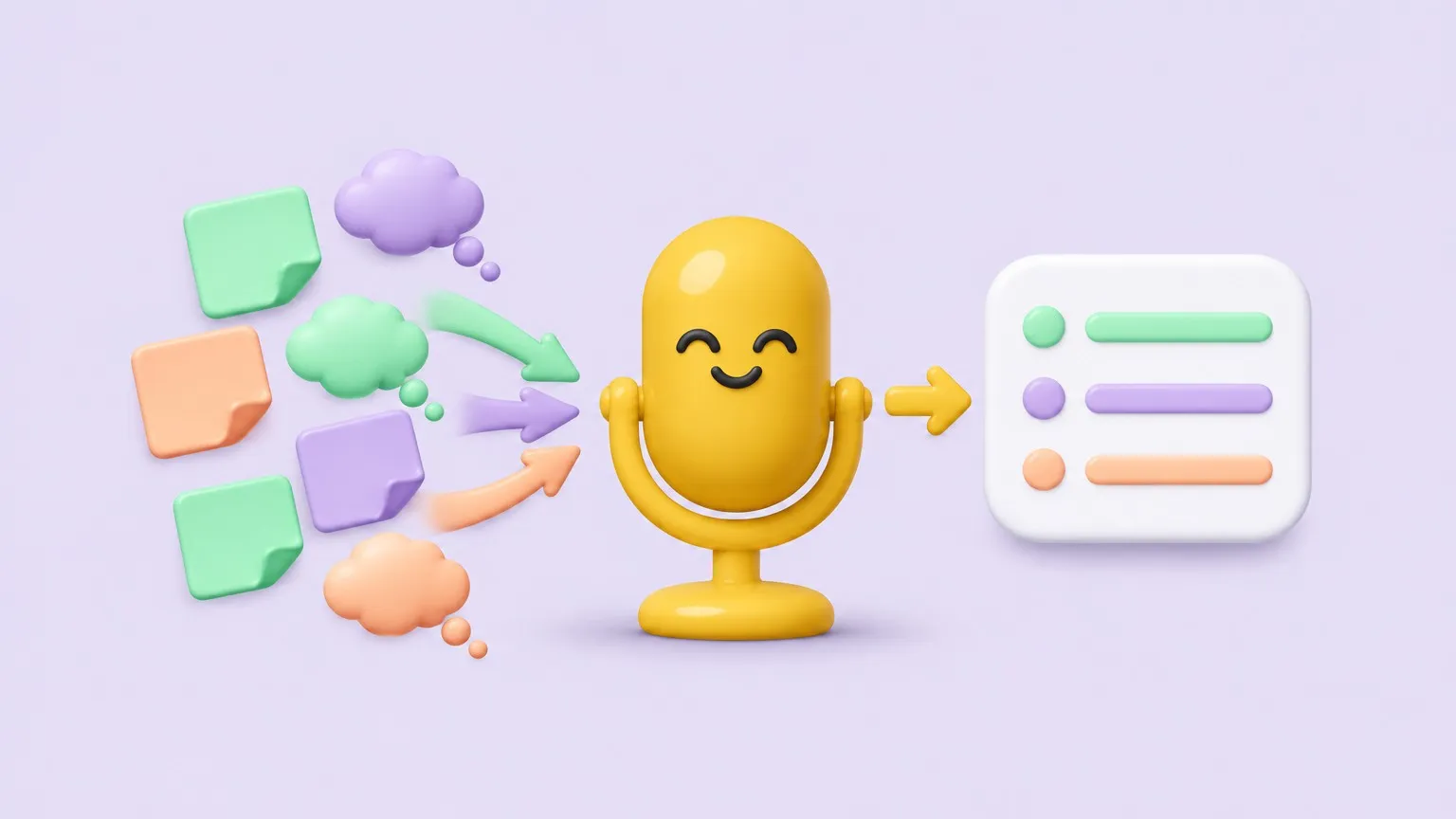
Voice-first note-taking can make notes easier for many people with ADHD or dyslexia: you say the thought instead of typing it, an app like Mangonote transcribes it on the iPhone, and AI can structure the ramble into a short list you can act on. You keep the original audio, so you can listen back instead of rereading. This is a practical guide to tools and habits, not medical advice; what works differs from person to person.
Why voice first can help
- Capture before it’s gone. Tapping one button and talking is faster than opening a notes app and typing.
- No spelling in the way. You get the idea down first; the transcript handles the words.
- Structure comes after. A summary can turn a brain dump into bullet points, decisions and to-dos.
- Listen instead of reread. The recording is always there to play back.
A low-friction setup
- Keep the app one tap away. Put Mangonote in your iPhone’s Dock or on the first Home Screen.
- Use few folders. Three or four, like School, Work, Ideas, Personal. Fewer choices, less friction.
- Leave Auto summary on, so every recording comes back with a title and a short summary you can scan.
- Pick a prompt that suits you in Settings › Transcription & AI › Prompt, for example:
Turn this into a short to-do list, one action per line, starting with a verb. Then a one-sentence summary. Leave out everything else.
In lectures and meetings
- Record, then listen. With permission, record the lecture so you can focus on understanding instead of keeping up. See how to record lectures on iPhone.
- Ask about accommodations. Many schools let students record lectures through their disability or accessibility office.
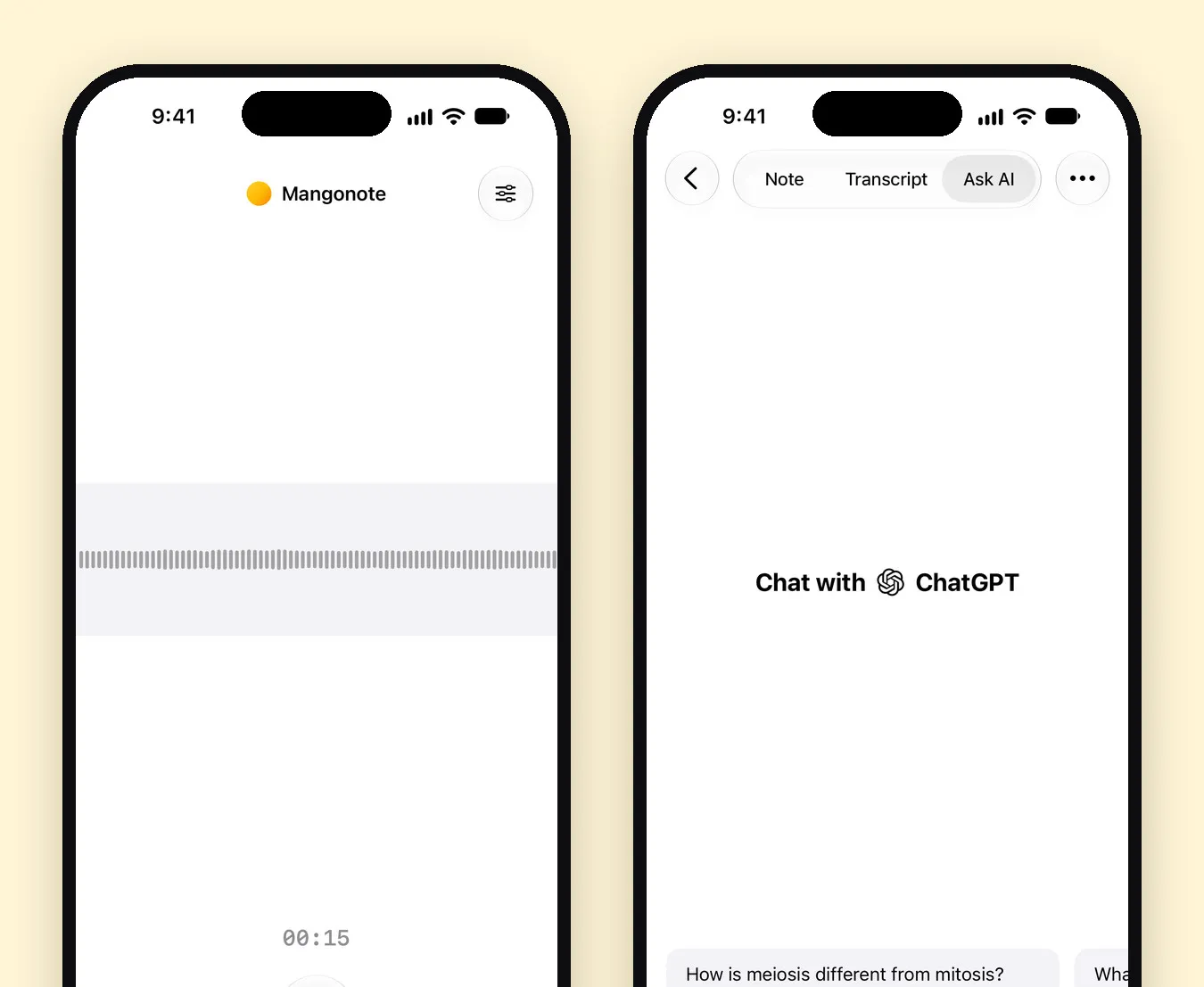
- Ask AI afterwards for what you need: “Summarize the last 10 minutes”, “Make 5 flashcards”, “What’s due next week?”
- Use a structure you like. The Cornell method and mind maps are covered in how to take good notes.
Brain dumps without the mess
When your head is full:
- Tap Start Recording and say everything, in any order.
- Let the summary sort it, or ask Ask AI: “Group these into tasks, ideas and worries.”
- Move the tasks to wherever you keep your to-do list.
Reading and reviewing
- Play the recording with the player under the transcript, and skip back 15 seconds to hear a part again.
- Choose the summary length: Brief (25–40 words) for a quick scan, Detailed when you need more.
- Have text read aloud with the iPhone’s own Spoken Content options in Settings › Accessibility.
Keep it private
Recordings are transcribed on your iPhone and aren’t uploaded to be transcribed. AI summaries send only the transcript text to the AI model you pick, after you agree, and you can turn AI off in Settings › Transcription & AI › AI processing.
Related guides
- How to take good notes in class: 5 methods
- How to dictate notes on iPhone and turn them into drafts
- Voice to text on iPhone: dictation vs. a transcription app
Frequently asked questions
What is the best way to take notes with ADHD?
Many people find it easier to capture first and organize later. Record or say the thought the moment it comes, let an app transcribe it, and sort it into folders when you have a minute. Keep the system simple enough that you'll actually use it.
Does speech to text help with dyslexia?
Speaking instead of typing can take spelling out of the way when you capture ideas. An app that transcribes recordings also lets you listen back to the original audio. What helps varies by person, so try it with real tasks.
Can I record lectures as an accommodation?
Many schools allow recording lectures as an accommodation through their disability or accessibility services office. Ask your school how it works there.
Is this medical advice?
No. This guide is about tools and habits for taking notes. For diagnosis or treatment, talk to a qualified professional.
Does Mangonote read notes aloud?
You can play back the original recording of any note. To have text read aloud, use the iPhone's own Spoken Content features in Settings › Accessibility.
Start capturing the thoughts you keep losing
Download Mangonote, record your first note, and watch it become searchable text in seconds, right on your iPhone.